Generation — Overview
Generation turns an authored Dialogue into playable Level Sequences: for every subdialogue and every line, Libretto builds Sequencer assets and fills them with animation, audio, cameras, subtitles and events. The result is a Master Sequence (one subsequence per generated dialogue sequence) referenced by a Dialogue Instance placed in the level, ready to be played at runtime.
A project that has the Libretto plugin enabled can create and generate dialogues with no special setup — the plugin ships working defaults for cameras, TTS and directories.
Quick start
The minimal loop to generate a two-character dialogue and play it in a map:
- Author a Dialogue to be generated.
- In the target level, place an
ALBRDialogueInstanceactor, and make sure the level also contains the character actors involved in the dialogue. - Set the instance's Input Dialogue to your dialogue asset.
- With the Dialogue Instance selected, use the buttons in its Details panel (General category): press Generate Assets if you want spoken audio (TTS / lip sync), then Generate Sequences. Each opens an options wizard with every subdialogue already checked — press Run.
- Play the dialogue with
StartDialogueInstance(Blueprint or C++), or press Preview to play it straight away in the editor.
One instance of each character class per level
When the generator needs a character actor, it takes the first actor of the matching class
it finds in the level (FindCharacterByClass). Avoid having several instances of the same
character class in the same level, or the wrong one may be staged.
Test without gameplay conditions
The Preview button launches the generated dialogue directly in Play-In-Editor, with pre-configured tags — handy to check a result without wiring up gameplay. With Auto End Play on (the default), PIE closes when the dialogue finishes.
The Dialogue Instance
ALBRDialogueInstance (an ALevelSequenceActor) is the anchor of a generated dialogue in the
level. It holds the generation input and, after generation, the generated data and the runtime API.
| Property | Purpose |
|---|---|
| Input Dialogue | The ULBRDialogue to generate at this location. |
| Stage Attribution | One entry per subdialogue of the Input Dialogue (fixed-size, synced by SyncStageAttributionEntries), mapping a subdialogue to a placed stage actor. Empty falls back to Default Stage then legacy fallbacks. |
| Default Stage | Stage used for any subdialogue without an explicit attribution. |
| Camera Rules Preset | Per-instance override of the camera rules (a FLBRCameraRulesPreset row). Empty uses the project default. |
| Entry / Exit Camera Blend Time | Blend duration (s) when entering / leaving the dialogue camera; 0 is a hard cut. |
| Lock Dialogue | If set, the instance is skipped by generation. |
The instance also exposes the runtime entry points — StartDialogueInstance,
StartDialogueWithSelector[s], StartDialogueWithSelectorQuery, and the static
StartGenericDialogue* helpers for generic dialogues.
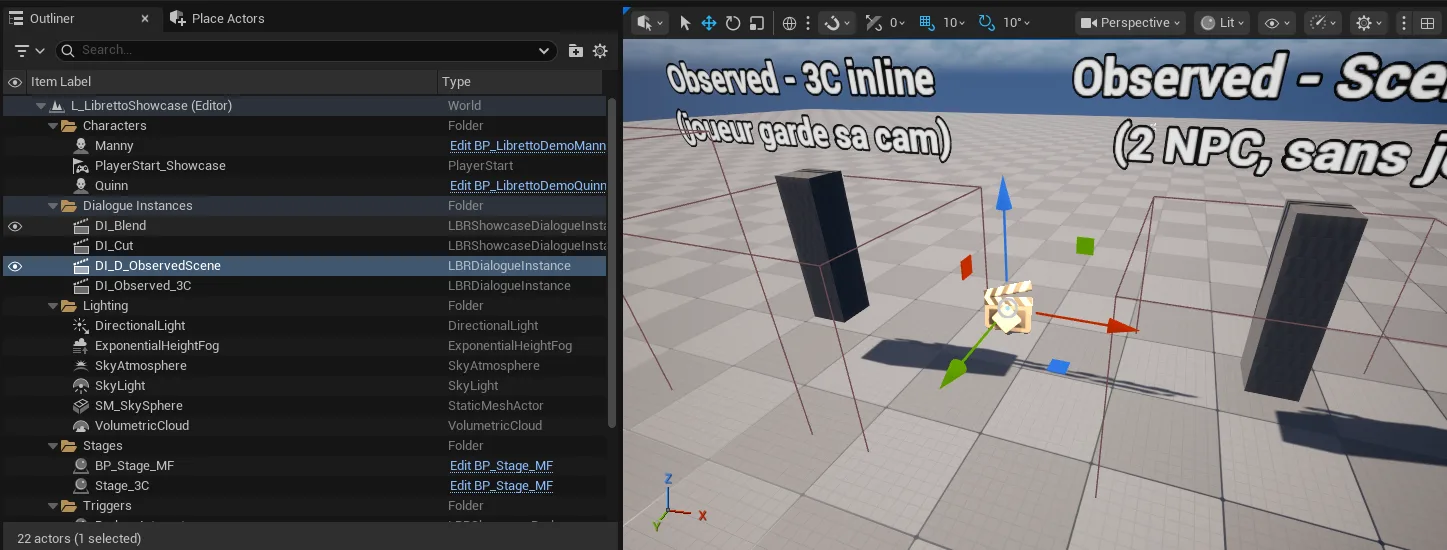
Running generation
Generation is split into four distinct actions, each with its own options wizard:
- Generate Assets — produce the data assets a dialogue needs (TTS audio, lip sync…). Runs before sequences.
- Generate Sequences — build the playable Sequencer tracks. The assets it consumes must already exist.
- Preview — play the generated dialogue in Play-In-Editor (see the quick-start tip).
- Record — render the dialogue to video via the Movie Render Pipeline (see Recording).
Where to launch them
| Entry point | Acts on | Use it when |
|---|---|---|
| Dialogue Instance ▸ Details ▸ General buttons (Generate Assets / Generate Sequences / Preview / Record) | the selected instance's Input Dialogue | The main path — you are set up in a level. |
| Libretto toolbar ▸ Dialogue Generation (same four entries) | the selected Dialogue Instance | Same as above, from the toolbar; entries are disabled when no instance is selected. |
| Content Browser ▸ right-click a Dialogue ▸ Libretto (Generate Assets… / Generate Sequences… / Record…) | the selected Dialogue asset(s) | No instance needed — generates as a generic dialogue. Works on a multi-selection. |
The options wizard
Every action opens a small modal wizard: set the options, press Run (or Cancel). The
options are remembered between runs (saved to your local .ini).
Common to all four is the Subdialogues selection: a checklist of the dialogue's subdialogues, all checked by default — uncheck the ones you want to skip. (Unlike the old widget, an empty selection no longer means "all"; the pre-checked state is explicit.)
The Generate Sequences wizard also exposes:
- Tracks to Generate — which track generators to run (see Track generators).
- Flags — options parameterizing track generation.
The All flag
If the All flag (Libretto.Generation.Tracks.All) is checked, every track type is
overwritten, whether or not its individual line is ticked. This flag is required for a full
generation — without it the process can produce an empty result. Tracks to Generate defaults
to All.
Ignoring track types per character
A character can opt out of certain track types by returning the matching tags from the
LBRDialogueCharacter interface method GetIgnoredTracks — e.g. an FPS character that
should not receive body animation.
The Generate Assets wizard exposes:
- Assets to Generate — which asset generators to run (see Asset generators).
- Flags — options parameterizing asset generation.
The Force flag
By default a generator only creates the assets that are missing. The Force flag tells the generators to overwrite everything — use it after editing dialogue text so stale audio/lipsync is regenerated.
Pressing Generate runs the process. Each operation (assets for a dialogue, then tracks for a dialogue) shows its own progress; there is currently no single global progress bar.
Project settings
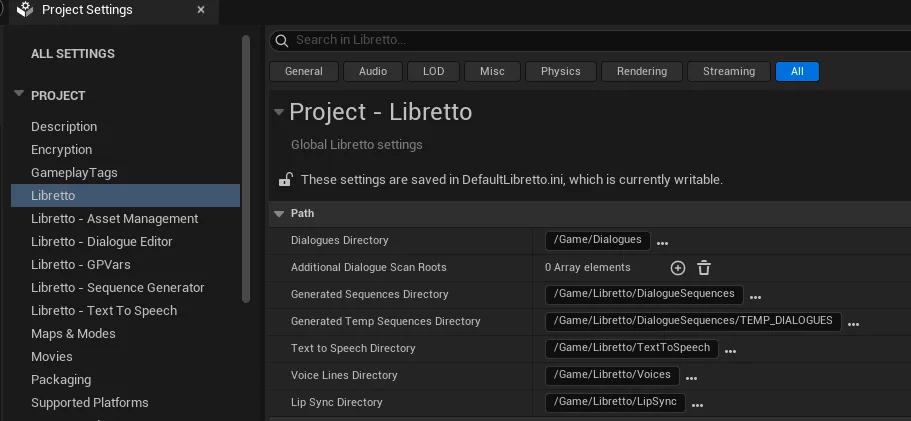
Directories — Project Settings ▸ Libretto
The core ULBRDialogueCoreSettings (section Libretto) defines where the generator reads data
and writes assets:
| Setting | Purpose |
|---|---|
| Dialogues Directory | Root holding the game's final dialogues. The directory structure under it is replicated in the generated sequences. |
| Generated Sequences Directory | Where Level Sequences are generated (mirroring the dialogue structure). |
| Generated Temp Sequences Directory | Where sequences for test dialogues (outside the Dialogues Directory) go. |
| Text To Speech Directory | Where generated TTS audio is stored; used only when no recorded voice line is found. |
| Voice Lines Directory | Where recorded voice lines for dialogue lines are placed. |
| Lip Sync Directory | Where LipSync animations are placed. |
| Default Posture | The posture descriptor applied to characters by default. |
Mount-aware output paths
Output paths are mount-aware. A dialogue that lives in /Game generates into /Game. A
dialogue delivered inside a plugin (e.g. /Libretto/...) generates its sequences,
TTS and voice lines into that plugin — next to the sequences — so the content stays
self-contained and playable as shipped. This is handled by LBRGetMountRoot /
LBRRebaseDirToMount and is symmetric with resolving a dialogue back from a sequence.
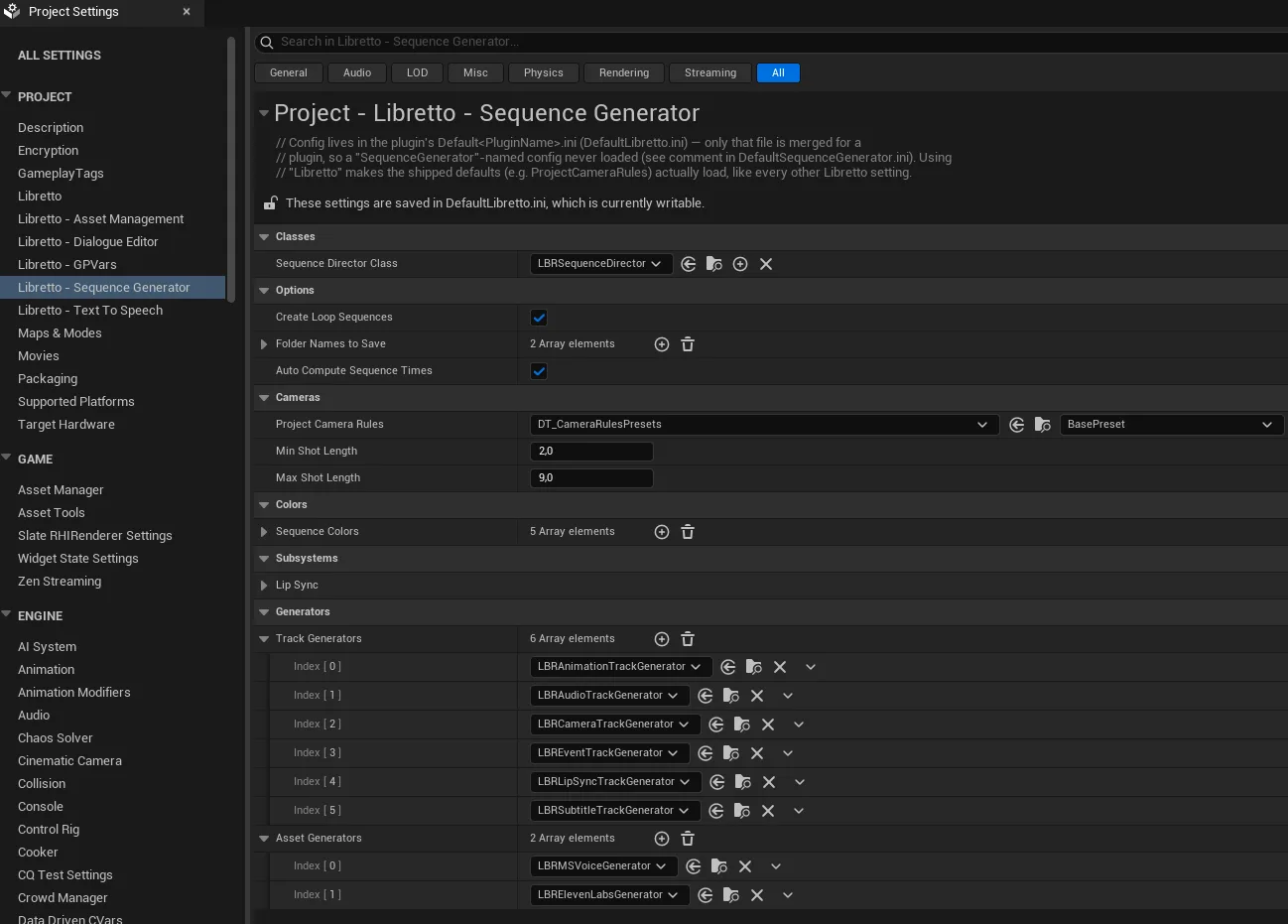
Sequence Generator — Project Settings ▸ Libretto – Sequence Generator
ULBRSequenceGeneratorSettings (display name "Libretto – Sequence Generator"):
| Setting | Purpose |
|---|---|
| Sequence Director Class | (advanced) The ULBRSequenceDirector subclass used for dialogue events. Set once per project if needed. |
| Create Loop Sequences | If on, a looping wait sequence is generated after each choice, to hold the wait for the player's choice without pausing the game. |
| Project Camera Rules | The default camera-rules preset (a DT of FLBRCameraRulesPreset rows). |
| Min / Max Shot Length | Bounds (seconds) on generated camera shot length. |
| Folder Names To Save | Sequencer tracks grouped under a folder whose name is in this list are not overwritten on regeneration, even with the All flag — so hand-made additions (Audio, VFX…) survive. Defaults: VFX, Audio. |
| Auto Compute Sequence Times | If on, when the ID marked frames are re-laid at save, each subsequence's duration is recomputed to fit its last bounded section / event. |
| Sequence Colors | Colors given to the subsequences in the Master Sequence. |
| Track Generators | The classes that generate each Sequencer track type. This list drives the Tracks to Generate field in the Generate Sequences wizard. |
| Asset Generators | The classes that generate assets (TTS, lipsync…) before the tracks. Drives the Assets to Generate field in the Generate Assets wizard. |
Preserved folders are a reference, not a guarantee of correctness
A saved folder keeps a copy of the work you did, but its content may still need adapting to the reason you regenerated the dialogue.
Runtime — Project Settings ▸ Libretto
Two runtime UI classes also live under the Libretto section:
- Widget Choice Default Class — widget used to display choices (a default is used if unset).
- Widget Subtitle Class — widget used for subtitles (unset falls back to printing lines top-left).
Generic dialogues
A generic dialogue can play anywhere, not necessarily in a level context — typically voice-only (a phone voice, a narrator…), though it can technically carry gestures or play for staged characters as long as the right characters are in the level when it runs.
Generate one by right-clicking the Dialogue asset ▸ Libretto ▸ Generate Sequences… (and
Generate Assets… first for audio) — this path takes no Dialogue Instance, so it produces a
generic dialogue. At runtime, use the static ALBRDialogueInstance::StartGenericDialogue*
helpers — they spawn a transient instance for you.
Intangible characters
A base class for intangible characters — ULBRIntangibleCharacter — only defines voice
parameters and does not require a level instance, which pairs naturally with generic
dialogues.
The generation flow
Each action funnels its options and target dialogue(s) into one generation request per dialogue
sent to ULBRDialogueGenerationSubsystem. The two core entry points are
GenerateDialogueAssets and GenerateDialogueSequences (BlueprintCallable, and exposed
to Python as generate_dialogue_assets / generate_dialogue_sequences) — so the whole pipeline is
scriptable headless, independently of the editor UI.
ULBRDialogueGenerationSubsystem — per request
- Compiles the option flags for the subdialogues.
- If the settings' Asset Generators contain classes compatible with the flags: loads and instantiates them, orders them by dependency, and generates each asset type in a group (synchronously for now).
- If the settings' Track Generators contain classes compatible with the flags: loads and instantiates them.
- Creates a
ULBRSequenceGeneratorand callsGenerate, passing the flags and the track generators.
ULBRSequenceGenerator — per dialogue
- Caches the whole generation context (paths, instances, flags) and registers itself in the track generators so each can find that context.
- Finds and caches the character actor instances in the level matching the classes used by the dialogue.
- Creates the Slate progress indicator, clears the Dialogue Instance caches (used characters; destroys stages if CleanAll is set), and closes Sequencer if it was open.
- Finds or creates the Master Sequence; lists the subsequences of the subdialogues to generate (all if CleanAll), setting aside any whose track in the master is locked. With CleanAll it clears the rest of the content (except folders spared by Folder Names To Save).
- For each sequence in the dialogue (skipping any not in a selected subdialogue):
- On the first sequence of a subdialogue: switches the sub-progress indicator,
dereferences the previous stage (deleting it if unused), resolves the stage it needs
(reusing an existing one of the right class), creates the subdialogue's subsequence track
in the master, and calls
InitSubdialogueon the track generators. - If the sequence asset existed and is not locked: CleanAll clears its content
(respecting the folder filters), otherwise the generators'
CleanSequenceruns. Otherwise the sequence is created. - If not locked: calls
InitSequence, then for each line prepares theSentenceData(speakers/listeners, line duration, goto destinations…) and callsPopulateSequenceForLine, thenFinishSequence. - Adds the sequence to the subdialogue's subtrack and updates the master duration.
- If a loop is needed (project option on, and an event-track return or a locked looping sequence), re-runs the sequence process with the loop flag (skipping the per-line pass).
- On the first sequence of a subdialogue: switches the sub-progress indicator,
dereferences the previous stage (deleting it if unused), resolves the stage it needs
(reusing an existing one of the right class), creates the subdialogue's subsequence track
in the master, and calls
- Copies unused previous sequences that hold saved data (matching the folder filters) as
_BACKUPSAVE. - Walks every subsection of the master: creates marked frames named after the line IDs of each event/reply, and (if Auto Compute Sequence Times is on) re-evaluates and updates the durations.
- References the master in the Dialogue Instance, calls
FinishGenerationon the track generators, references the used character instances, recompiles the sequence director Blueprints, saves the sequences, closes the progress indicator, and reopens Sequencer if it was closed.
Headless / scriptable generation
Generation can run unattended. Blocking dialogs (phase-done popups, errors,
quota warnings) can be suppressed via
ULBRDialogueGenerationSubsystem::SetSuppressBlockingDialogs(true) (automatic when the editor
runs -unattended); suppressed messages are logged instead. Automated asset import is silent
too — the import task runs with bAutomated = true and bReplaceExisting = true, so there is
no overwrite prompt.
Track generators
Registered in Track Generators; live in the LBRSequenceGenerator module.
| Generator | Fills |
|---|---|
LBRAnimationTrackGenerator |
Postures, gestures, and the RootMotion / StageTransform tracks (see Animation). |
LBRAudioTrackGenerator |
Voice-line / TTS audio sections. |
LBRCameraTrackGenerator |
Camera cuts and shots (see Cameras). |
LBREventTrackGenerator |
Dialogue events (choices, gotos, actions…). |
LBRLipSyncTrackGenerator |
Places facial LipSync animations. |
LBRSubtitleTrackGenerator |
Subtitle sections. |
Asset generators
Registered in Asset Generators (they run before the tracks). Base class ULBRAssetGenerator.
| Generator | Produces |
|---|---|
LBRMSVoiceGenerator |
TTS audio via the Windows speech API, SAPI (see Text to speech). |
LBRElevenLabsGenerator |
TTS audio via the ElevenLabs API. |
LBRAmplitudeLipSyncGenerator |
Simplistic lip-sync: a MouthOpen morph animation baked from the audio's amplitude (see LipSync). |
Text to speech
Audio can be generated with Text to Speech by enabling a TTS asset generator in the Generate Assets wizard.
Warning
Generation is significantly slower with TTS enabled.
Audio is downloaded under the Text To Speech Directory, in a subfolder named after the
generated dialogue (e.g. .../TextToSpeech/DialogueTest/). Already-generated audio is not
regenerated unless you set the Force flag on asset generation.
The active provider depends on which asset generators are selected in the project settings — by
default both MSVoice and ElevenLabs are registered. TTS settings live under Project
Settings ▸ Libretto – Text To Speech (ULBRTextToSpeechSettings), where you set the ElevenLabs
API token, the ElevenLabs Character Voices Table, and the MSVoice defaults.
MSVoice provider
The MSVoice provider (LBRMSVoiceGenerator, Windows speech API) ships with the
plugin. It differentiates voices by gender + culture + prosody using a DT_MSVoices
DataTable (rows of FLBRMSVoiceCharacterDesc), and the spoken language follows the
generation culture (DefaultTTSCulture, e.g. en-US). If the character table is unset it
auto-picks a voice per character by gender and culture — no error. A dedicated TTS page
covers the providers in detail.
LipSync
The LBRLipSyncTrackGenerator places pre-existing facial LipSync animations into the sequence:
if they are named correctly and placed in the Lip Sync Directory, they are matched to the right
lines automatically. Which per-character model to use comes from the LBRDialogueCharacter
interface method GetLipsyncModel.
Lip-sync quality — a simplistic generator ships
Libretto ships the LipSync track placement (looking up a lip-sync subsystem by name —
LipSyncSubsystemName in the sequence-generator settings, resolving the GetLipsyncModel
interface method) and a simplistic data generator, LBRAmplitudeLipSyncGenerator: it
bakes a MouthOpen morph animation whose opening follows the audio's amplitude envelope. This is
deliberately crude — it approximates mouth movement, not phonemes. For phoneme/viseme-grade
lip-sync, implement your own asset generator (ULBRAssetGenerator) and register it in the
Asset Generators list; see
generating a new kind of asset.
Cameras
If a subdialogue has a stage and is not set to 3C, the generator cuts each subsequence into several camera shots. Shot length is bounded by Min Shot Length / Max Shot Length in the sequence-generator settings; the camera chosen for each shot is decided by the camera rules.

Camera rules are ULBRDialogueCameraRule Blueprints whose overridden EvaluateScore returns a
score for each candidate camera; the highest-scoring camera wins. Rules are grouped into presets
(FLBRCameraRulesPreset rows) and selected per project, per stage, or per instance.
Camera rules are wired by default
The plugin ships a default preset wired in DefaultLibretto.ini
(ProjectCameraRules = DT_CameraRulesPresets:BasePreset), so out of the box shots target the
speaker. Override it per stage (CameraRulesPreset on the stage) or per instance
(CameraRulesPreset on the Dialogue Instance).
Authoring camera rules — creating rule Blueprints, building presets, and choosing which preset a project / stage / instance uses — is covered on the dedicated Camera Rules page.
Animation
To fill dialogue sequences, the animation generator pulls three kinds of animation:
- Posture — the character's base animation for a dialogue phase (usually a low-motion idle); everything else layers on top of it.
- Gestures — the main animations added over the posture, of two kinds:
- Keyword gestures — tied to specific words (e.g. a nod on "yes"), placed where the keyword is spoken (found by analysing the line).
- Standard gestures — generic "filler" motions used to fill the gaps left between keyword gestures.
- LipSync — the facial animations described above.
Keyword-timed gestures
Finding where a keyword is spoken relies on vosk, an offline speech recognizer (Apache 2.0) that is optional and not shipped with the plugin: Libretto never downloads, installs or launches it. Without it, gestures are still chosen, just not timed on keywords (a single warning is logged).
To enable keyword timing, install it once per project:
-
The
voskPython package, with the engine's own Python, into the project'sSaved/Libretto/PyLibsfolder (Libretto adds it to the Python path automatically):"<UE>\Engine\Binaries\ThirdParty\Python3\Win64\python.exe" -m pip install vosk --target "<Project>\Saved\Libretto\PyLibs"Installing it into the engine's Python with
pip install vosk(no--target) also works. -
A speech model: download one from the vosk models page (e.g.
vosk-model-small-en-us-0.15, about 40 MB, for English lines) and unzip it anywhere. -
Point Project Settings ▸ Libretto – Sequence Generator ▸ Word Analysis ▸ Vosk Model Folder at the unzipped model folder (absolute, or relative to the project folder).
Then regenerate the dialogue's animations: each voiced line is analysed in the editor, in process. vosk and its models are third-party software under their own license (Apache 2.0).
Posture descriptors
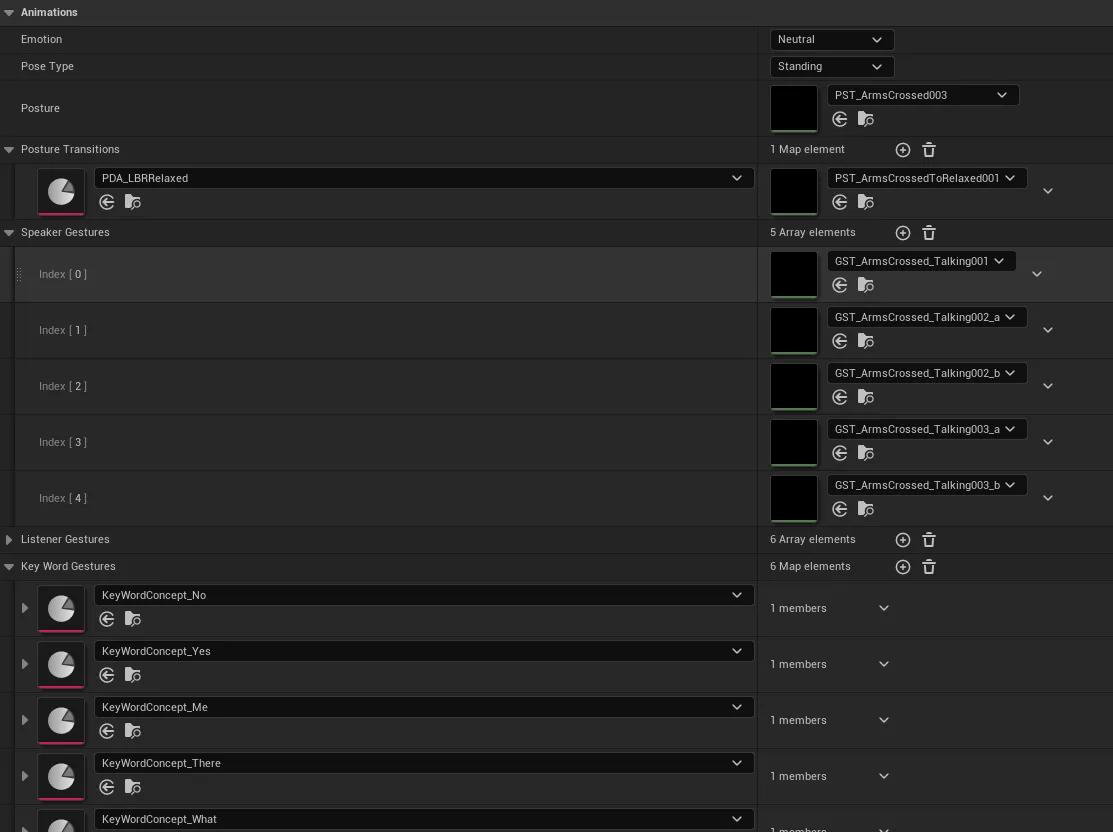
To tell the generator which animations to use, create ULBRPostureDescriptorDataAsset data
assets (right-click Content Browser ▸ Miscellaneous ▸ Data Asset). Base descriptors ship with the
plugin under the Libretto content Postures folder (e.g. PDA_LBRRelaxed, the shipped
Default Posture).
| Property | Purpose |
|---|---|
| Emotion | The character emotion (same list as the Dialogue Editor). |
| Pose Type | Standing, sitting, crouched… (same list as the Dialogue Editor). |
| Posture | The base posture animation all others in this row build on. Should match the Pose Type and Emotion. |
| Speaker Gestures / Listener Gestures | Generic gestures used when the character is speaking / listening. |
| KeyWord Gestures | Maps a ULBRKeyWordConcept (a keyword data asset) to a list of animations; if a word of the concept appears in a line, the generator picks from that list. |
| Posture Transitions | For each other posture, the animation to use when transitioning onto it. |
Emotion / Pose Type are informational
Postures are chosen deterministically; these two fields are not read by the pipeline and may disappear.
Each line can set a different posture for its speaker or listener; it stays active until a new one is set. The project-wide fallback is Default Posture in Project Settings ▸ Libretto. In the editor, a greyed Speaker/Listener Posture on a line shows the value that will be used at generation given the previous lines.
RootMotion & StageTransform tracks
After the posture tracks are generated, the animation generator adds the RootMotion and StageTransform transform tracks. These place and move the characters in Sequencer so you can preview what the sequence will do at runtime.

-
RootMotion — for each character in the sequence, the root motion of each of its postures is extracted and added to the character's transform track in a section named RootMotion, set to Additive From Base for consistency.
RootMotion format
The RootMotion part of an Animation Sequence must follow a specific format for extraction to work.
-
StageTransform — if the subdialogue has a stage and the character is assigned to one of its slots, an Attach section is created referencing the stage (with the slot as component), plus an additive StageOffset track to place the character at the right height on the slot. Because it is an Attach, it supports the stage moving at runtime.
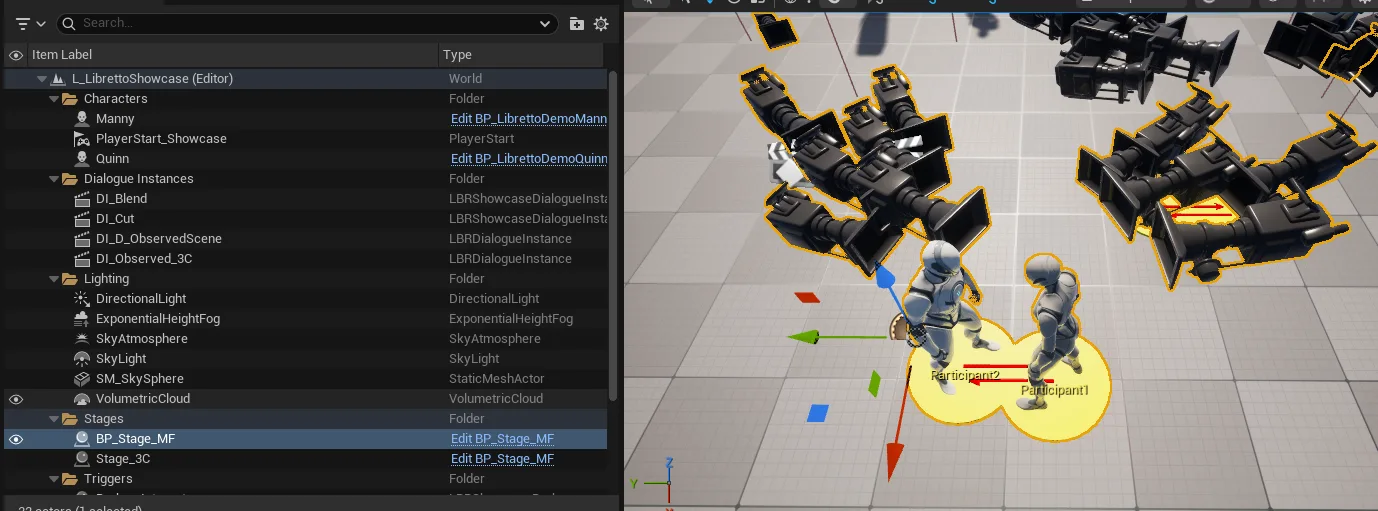
A stage is assigned to a subdialogue through the Dialogue Instance's Stage Attribution / Default Stage. Each stage slot has a Character Number matched against the subdialogue's character index; at generation the stage is instantiated and characters are placed on their respective slots.
Regenerating only RootMotion & StageTransform (WIP)
A button in Sequencer regenerates only the RootMotion / StageTransform tracks of the selected sequence, taking into account posture edits you have made — without a full regeneration.