Subtitles
Libretto ships a ready-to-use subtitle path that turns every played line into on-screen text with no setup on your part: as a dialogue plays, the manager pushes each line's speaker name and text into a subtitle widget. This page covers the shipped widget, how to swap or restyle it, the interface a custom widget must implement, and the line flags that change subtitle behaviour.
The shipped widget
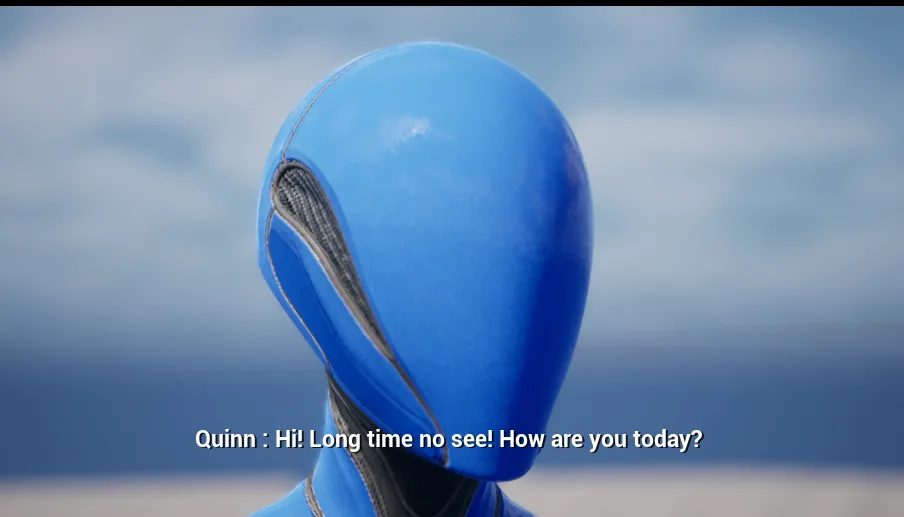
Out of the box, the subtitle class is ULBRSimpleSubtitleWidget (module LBRCore). It draws
its own widget tree in code — a full-screen overlay with a single auto-wrapping text block centred
at the bottom of the screen — and formats each line as Speaker : line text.
It exposes two properties you can tune (directly, or on a Blueprint subclass):
| Property | Default | Effect |
|---|---|---|
bShowSpeakerName |
true |
Prefix the line with the speaker's name (Speaker : text). Turn off for name-less subtitles. |
FontSize |
22 |
Font size of the subtitle text. |
The speaker name comes from the character itself: the widget calls
ILBRDialogueCharacter::LBRGetCharacterName on the line's Speaker class, so whatever a
character returns there (ideally localized text — see the Dialogue Editor
page) is what appears in the subtitle.
Info
ULBRSimpleSubtitleWidget builds its layout programmatically — there are no named bindings
(no SubtitlesLabel_TXT / SpeakerName_TXT / Background widgets to wire up). To change the
look, either tweak the two properties above, subclass the widget in Blueprint, or provide your
own widget class (see below).
Choosing the subtitle widget
The class used to display subtitles is a project setting:
Project Settings ▸ Libretto ▸ UI ▸ Widget Subtitle Class (WidgetSubtitleClass on
ULBRDialogueCoreSettings).
It ships pointing at ULBRSimpleSubtitleWidget:
[/Script/LBRCore.LBRDialogueCoreSettings]
WidgetSubtitleClass=/Script/LBRCore.LBRSimpleSubtitleWidget
Point it at any widget class you like — but that class must implement the
LBRDialogueSubtitle interface (the setting enforces this with MustImplement). If the setting
is empty, the manager logs a warning and no on-screen subtitle is shown.

Writing a custom subtitle widget
To fully control the presentation, create a widget (Blueprint or C++) that implements
ILBRDialogueSubtitle and set it as the Widget Subtitle Class. The interface has two events:
| Event | Called when |
|---|---|
ShowDialogueSubtitle |
A line starts playing. Params: the Dialogue Instance, the Line ID, the Dialogue, and the line's duration (SentenceLength, in seconds). |
HideDialogueSubtitle |
The line ends. Same first three params. |
From those parameters you can pull whatever you need — for example the localized text via
Dialogue's line arrays, and the speaker name via
ILBRDialogueCharacter::LBRGetCharacterName on the line's Speaker class — and render it however
your project wants (fonts, background, animations on show/hide, and so on).
The simplest route is to subclass ULBRSimpleSubtitleWidget in Blueprint: you inherit its
show/hide logic and speaker-name formatting, and only override what you want to change.

Line flags that change subtitles
A line's flags can override the default subtitle behaviour. Two flags ship for this:
| Flag | Tag | Effect |
|---|---|---|
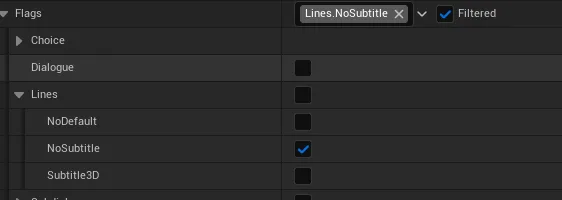
| NoSubtitle | Libretto.Flags.Lines.NoSubtitle |
The line plays but shows no subtitle at all. |
| Subtitle3D | Libretto.Flags.Lines.Subtitle3D |
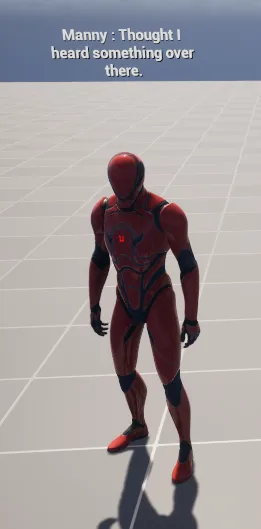
Render the subtitle in world space above the speaker's head (bark-style) instead of on the 2D HUD. |
World-space subtitles (Subtitle3D)
When a line carries Subtitle3D, the manager resolves the speaker's actor in the level and, the
first time it's needed, attaches a UWidgetComponent above its head — reusing the same
WidgetSubtitleClass as the 2D path, just rendered in world space. The component is created
once per speaker and reused for subsequent lines; if the speaker actor can't be resolved (for
example a bark from a character not present in the world), nothing is shown and no error is raised.
The subtitle overhead: driving your own UI
If you don't want Libretto to spawn its own subtitle widget — because your HUD already owns a
subtitle area — you can bypass the built-in widget entirely by binding to the manager's delegates
on ULBRDialogueManager:
| Delegate | Fires |
|---|---|
OnSubtitleDisplayed |
When a line's subtitle should appear. Carries the Dialogue Instance, Line ID, Dialogue, SentenceLength, and a set of runtime Flags. |
OnSubtitleHidden |
When it should disappear. Carries the Dialogue Instance, Line ID, Dialogue. |
Info
These delegates take priority over the built-in widget: if OnSubtitleDisplayed is bound,
the manager broadcasts to it and does not spawn WidgetSubtitleClass. Bind them to route
subtitles into your own HUD.
The Flags passed to OnSubtitleDisplayed let you distinguish the main dialogue (the one the
player is focused on) from background ones: it carries Libretto.RuntimeFlags.MainDialogue
(TAG_LBRRuntimeFlag_MainDialogue) for the focused dialogue. Use it to, say, show the main
conversation prominently and secondary chatter more discreetly.