Data & logic
I want a dialogue to remember what the player has already done or said
You usually don't have to wire anything — Libretto already records progress in the GPVar store as a dialogue plays. A CountedGPFlag is raised when a dialogue or subdialogue ends, and a flag is written each time a reply is picked. For your own state, write your own GPVars from anywhere.
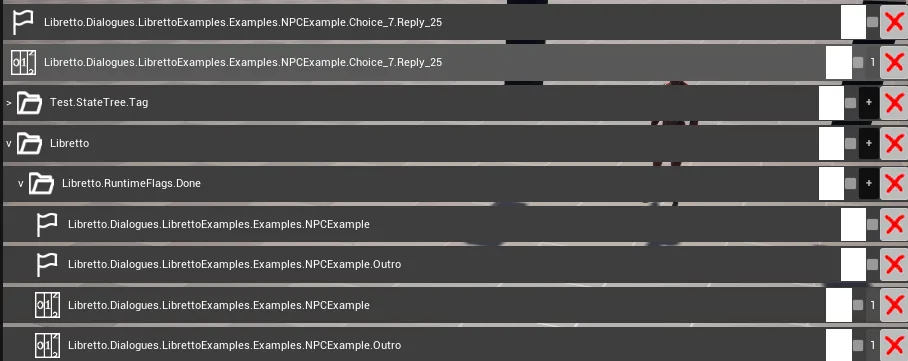
- Play a dialogue once, then open the runtime debug widget from the console with
Libretto.GPVar.OpenDebugWidget(run it again to close). You'll see theDoneentries and per-reply flags appear on their own — exactly what you'd have created by hand. - To track your own state, write a GPVar from any Blueprint or C++:
RaiseGPFlag/LowerGPFlagfor a boolean,SetGPCounter/GetGPCounterfor an integer, each identified by a GPTagPath (a sequence of gameplay tags, e.g.Characters.Galeb / Stats.Karma). - Read it back anywhere with
CheckGPFlag/GetGPCounter, or from a dialogue line with a condition (see the next entry).
Gotcha
GPVars are owned by the ULBRGPVarSubsystem (an engine subsystem), not by an actor or the
GameInstance — so a GPVar survives level travel and needs no reference to whatever created it. But
it is not saved for you: it resets when the session ends unless you persist it through your own
save system (see the next entry).
And whenever you add a new gameplay tag through Project Settings, remember to commit the
resulting Config/DefaultGameplayTags.ini.
See also: GPVars & Conditions · GPVars — runtime flags written during play
I want to save and restore Libretto state with my save game
Serialize two objects with a SaveGame archive: the GPVar store (ULBRGPVarSubsystem) and the
condition history (ULBRConditionHistorySubsystem). Together they hold everything Libretto
remembers: dialogues and subdialogues done, replies taken, your own GPVars, and the frozen results
of cached conditions. Libretto does not save them for you, and it needs nothing else.
-
When you save, write both subsystems into your save data, in C++:
#include "LBRGPVarSubsystem.h" #include "LBRConditionHistory.h" #include "Serialization/MemoryWriter.h" #include "Serialization/ObjectAndNameAsStringProxyArchive.h" static TArray<uint8> SaveLibrettoObject(UObject* Object) { TArray<uint8> Bytes; FMemoryWriter Writer(Bytes, true); FObjectAndNameAsStringProxyArchive Ar(Writer, true); Ar.ArIsSaveGame = true; Object->Serialize(Ar); return Bytes; } // In your save routine, next to your own data: SaveGame->LibrettoGPVars = SaveLibrettoObject(ULBRGPVarSubsystem::GetGPVarSubsystem()); SaveGame->LibrettoConditions = SaveLibrettoObject(ULBRConditionHistorySubsystem::Get()); -
When you load, read them back the same way, with an
FMemoryReaderandArIsSaveGame = true. Load both, or neither: a condition history without the GPVars it was frozen against gives inconsistent dialogues. - Loading replaces the whole history and the GPVars. GPVars under the
Transientroot tag are never kept: they are dropped on load.
Gotcha
The condition history is global and nothing is purged automatically, not even when a level
is unloaded. The results of conditions on level actors pile up in the save until you purge them:
call ClearConditionsOf (a dialogue, an actor, a package) or ClearAll on whatever you
no longer need. And renaming or moving an asset loses the history of its conditions.
See also: GPVars — saving · Conditions — the condition history
I want a reply to be hidden or greyed out until a situation is met
Attach a condition to the reply — the Display slot hides it when false, the Availability slot shows it greyed-out and unselectable. Pick the slot by the effect you want; both read the same live game state.
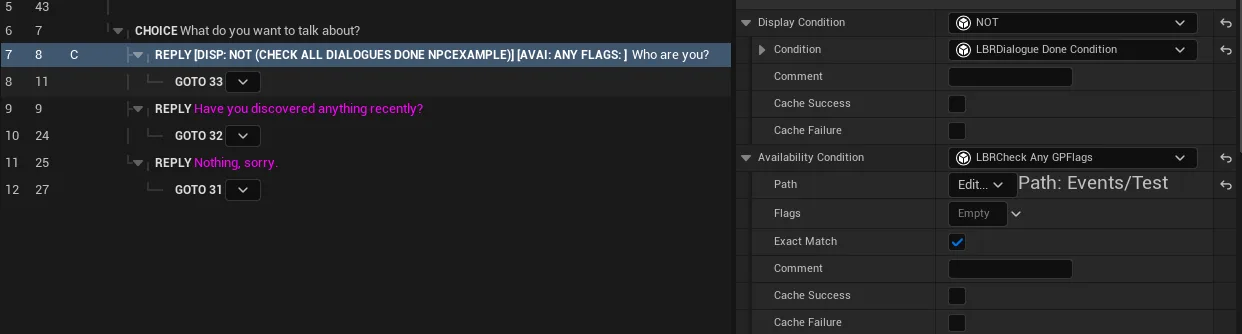
- On the Reply line, choose the slot: Display Condition = the reply is neither offered nor shown when false; Availability Condition = the reply is shown but greyed out and not selectable.
- Attach a
ULBRCondition— combine the built-in logical operators (AND / OR / NOT / XOR) with the GPVar checks (Check GPFlags,Check GPCounter, …) to express the situation. - For "has this dialogue been played?", use the dedicated
ULBRDialogueDoneConditionrather than hand-building a GPVar path (see the next entry).
Gotcha
Don't confuse the two slots — Display removes the reply, Availability only greys it out.
And only enable a condition's bCacheSuccess / bCacheFailure for results that never change
once reached (e.g. "tutorial completed"); on volatile state a cached answer is served
indefinitely.
See also: Conditions · GPVars — Display vs Availability · GPVars — the conditions dropdown
I want to test "has this dialogue already been played — and how many times?"
Use the layout-aware done conditions: ULBRDialogueDoneCondition for "played or not", and
ULBRDialogueDoneCountedCondition for "how many times". They take dialogue / subdialogue tags
directly and know how Libretto files its Done bookkeeping — no path plumbing on your side.
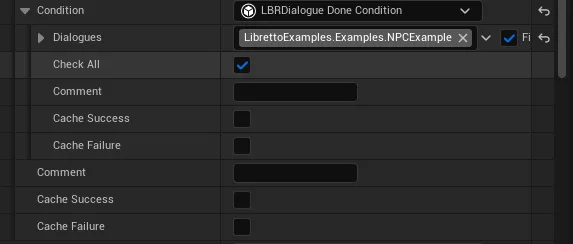
- For a yes/no check, attach
ULBRDialogueDoneCondition: give it the dialogue or subdialogue tag(s), with thebCheckAlltoggle for all vs any when you pass several. - For a threshold ("played at least 3 times"), use
ULBRDialogueDoneCountedCondition(derived fromULBRCheckGPCounter) to compare the play count. - These work anywhere a condition does — Reply, If/ElseIf branch, or whole subdialogue — and equally
from your own Blueprint via
EvaluateWithCache.
Gotcha
Don't rebuild the Done path by hand. It is stored as Libretto.RuntimeFlags.Done + the
dialogue/subdialogue tag (parent category + leaf), and the done conditions already know that
layout — a hand-rolled GPVar-path condition will silently miss it if the layout ever shifts.
See also: GPVars — how GPVars link to dialogues · Conditions — dialogue-played checks
I want a skill check that spends a resource when it passes — only once
A condition is a subclassable class, so you can override its evaluation to do something as part of the check — such as spending the resource it just tested — and lean on the built-in result cache so it happens only once. The check and its side effect live together in one place instead of being wired by hand around the line.
- Write the check as a condition — subclass
ULBRConditionand overrideEvaluateto compare the stat (e.g. a GPCounter likeCharacters.Player / Stats.Lockpick) against the difficulty. - Consume on check — do the spend inside that same
Evaluateoverride, so a successful check and the resource cost are one atomic step. Turn onbCacheSuccess/bCacheFailureso the result is cached andEvaluateis not re-run — that is what keeps the cost from being paid twice if the line is re-checked. - The outcome is remembered across the game — the cached result is stored in the global
ULBRConditionHistorySubsystem, which survives level changes. Read it back withCheckHistory(1= stored true,0= stored false,-1= no entry at all). Its map isSaveGame: serialize the subsystem with your save, alongside the GPVars, and "once" holds after a load too.
Gotcha
The cache is what enforces "once" — without bCacheSuccess / bCacheFailure, every re-check
re-runs Evaluate and spends again, so only put a side effect in a condition whose result is meant
to be final. If you need to re-arm it, call InvalidateLastResult. The history is never purged
automatically: call ClearConditionsOf once you no longer need it.
See also: Conditions — writing a condition · Conditions — the success/failure cache · Conditions — the condition history
I want to react the moment a game value changes, without polling every frame
Hook the change directly: drop a listener that fires an event on each change, or bind the subsystem's delegates for finer control. Either way you run your check once, right after the value moves, instead of testing it every tick.
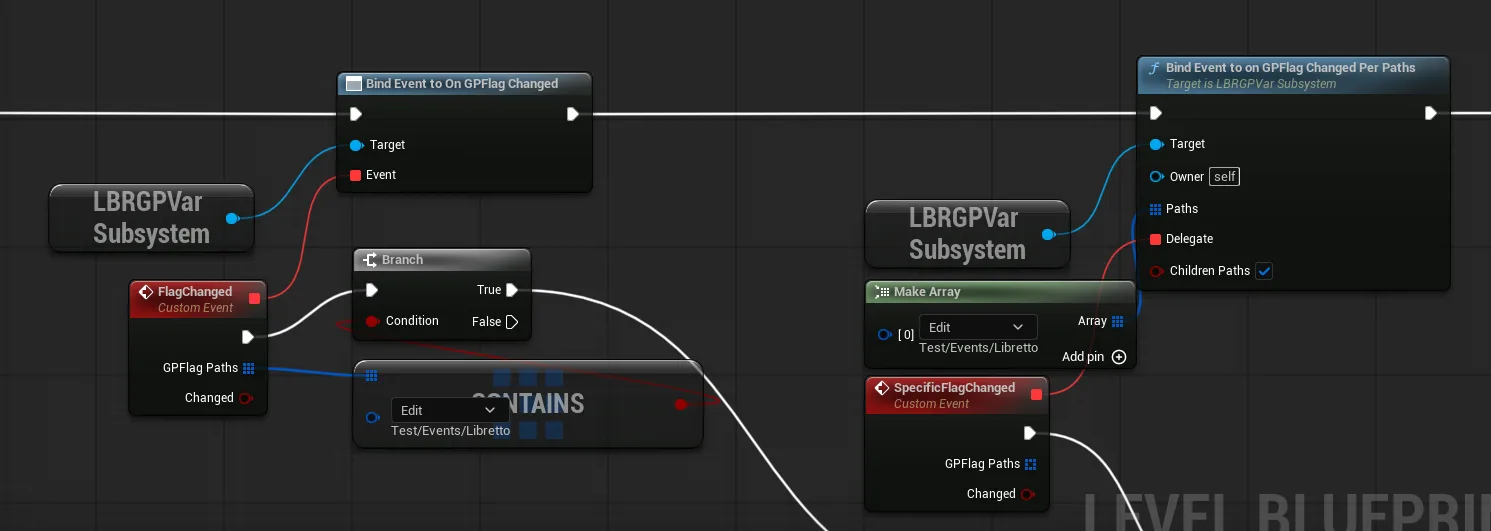
- The easy way — a listener. Use a listener actor (built on
UGPFlagListener/UGPCounterListener): give it a GPTagPath and wire its event in the Level Blueprint — OnFlagChanged (which flags, and raised vs. lowered) or OnCounterChanged (previous / new value). One listener can watch several paths. - The low-level way — delegates. Bind the subsystem directly with
BindEventToOnGPFlagChangedPerPaths/BindEventToOnGPCounterChangedPerPaths, filtering the paths yourself. The event parameters mirror the listener events.
Gotcha
With delegates you own the lifecycle — you must call the matching Unbind… when the listener
goes away, or you leak a binding and risk a callback into a dead object. Listeners handle
registration and unregistration for you, so prefer them unless you specifically need the
lower-level control.
See also: GPVars — reacting to changes · GPVars — the runtime debug widget
I want to add my own tick-box options (line/subdialogue flags, project settings)
Expose an LBRGameplayTagFlags property — it lists every child tag of a category as its own
checkbox, so adding an option means creating a gameplay tag, not editing the property. This is how
Libretto exposes per-line and per-subdialogue Flags and the generation options.
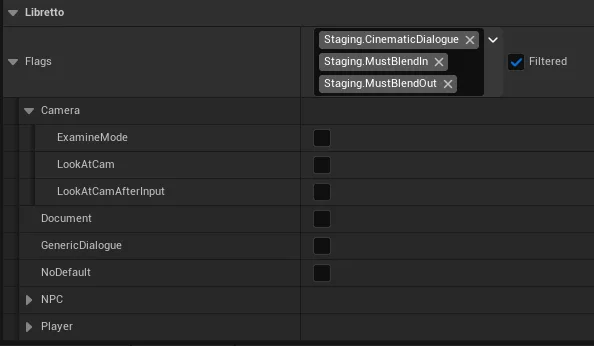
- Decide the category the options live under (e.g.
Libretto.Flags.Lines). A flags property filtered to that parent offers each child as a toggle. - Add an option by creating the matching gameplay tag under that parent — via Project Settings ▸
GameplayTags, an
.initag table, or natively in C++ (LBR_DEFINE_GAMEPLAY_TAG). The new checkbox appears automatically; no property change needed. - On your own property, filter it with
Categories(a fixed branch) orGetCategories(a function that returns the branch when the valid set is contextual), and addAutoExpandFlagsto draw it inline as a grid.
Gotcha
Two teams or plugins can contribute options to the same property just by declaring tags under
the same parent — it's data-driven, nothing needs to know about the others. As always, commit
Config/DefaultGameplayTags.ini after adding tags, or the boxes won't appear for teammates.
See also: Gameplay Tag Flags · Gameplay Tag Flags — filtering the options
My dialogue tags are missing or out of sync (especially in a packaged build)
Libretto generates the dialogue tags from the assets themselves at load, so the fix is almost never
to edit an .ini by hand — it is to let the scan re-run, and to make sure the cook-time bake shipped
with your build. There is a single source of truth: the Dialogue assets.
- In the editor, tags are (re)generated when the project loads by the
ULBRDialogueTagsSubsystem, which keeps an editor cache atSaved/LBRDynamicTags.cache. If a newly added or renamed dialogue's tags are missing or stale, delete that cache file — the next project load re-scans every asset and regenerates the tags from scratch. Never type tags into a config file by hand; those drift out of sync with the assets. - In a packaged build, the tags are baked at cook time to
Config/DynamicTags/DynamicTags.ini(loaded as a tag search path at runtime) and the tag→dialogue index toConfig/LBRDynamicTags.ini. If tags are missing only in the packaged game, check that these files were produced by the cook and included. -
Group selectors shared by several subdialogues live under
Libretto.Dialogues.<DialogueName>.SubdialogueSelectors.<Name>— the same generated tree, not a separate list to maintain.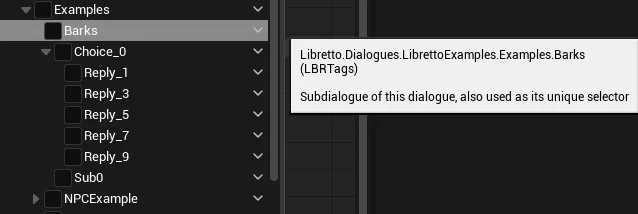
Gotcha
Dynamic Tags repurpose the native tag mechanism and must be registered early, before the engine
finishes adding native tags. That's handled internally, but it means these tags are not a
Blueprint workflow — don't try to add them at runtime via RegisterTag. And ignore any older
doc mentioning a per-dialogue Config/Tags/Dialogues/<Name>.ini: today the code produces the two
paths above.
See also: Dynamic Tags · Dynamic Tags — packaged builds & the .ini fallback