Animation & gestures
When a dialogue is generated, the animation generator dresses each line by pulling three kinds of animation onto the character: a base posture, gestures layered on top, and lip-sync. The first two are data you author; this page covers changing them. Lip-sync is a separate track — synchronised to the lines automatically — and you can see how lip-sync can be generated automatically.
I want to change how a character stands and moves during a dialogue (its posture)
A character's baseline animation for a dialogue phase comes from a posture descriptor asset; edit that (or pick a different one per line) to change the look. The posture is the low-motion idle everything else layers on top of — swap it and the whole scene reads differently.
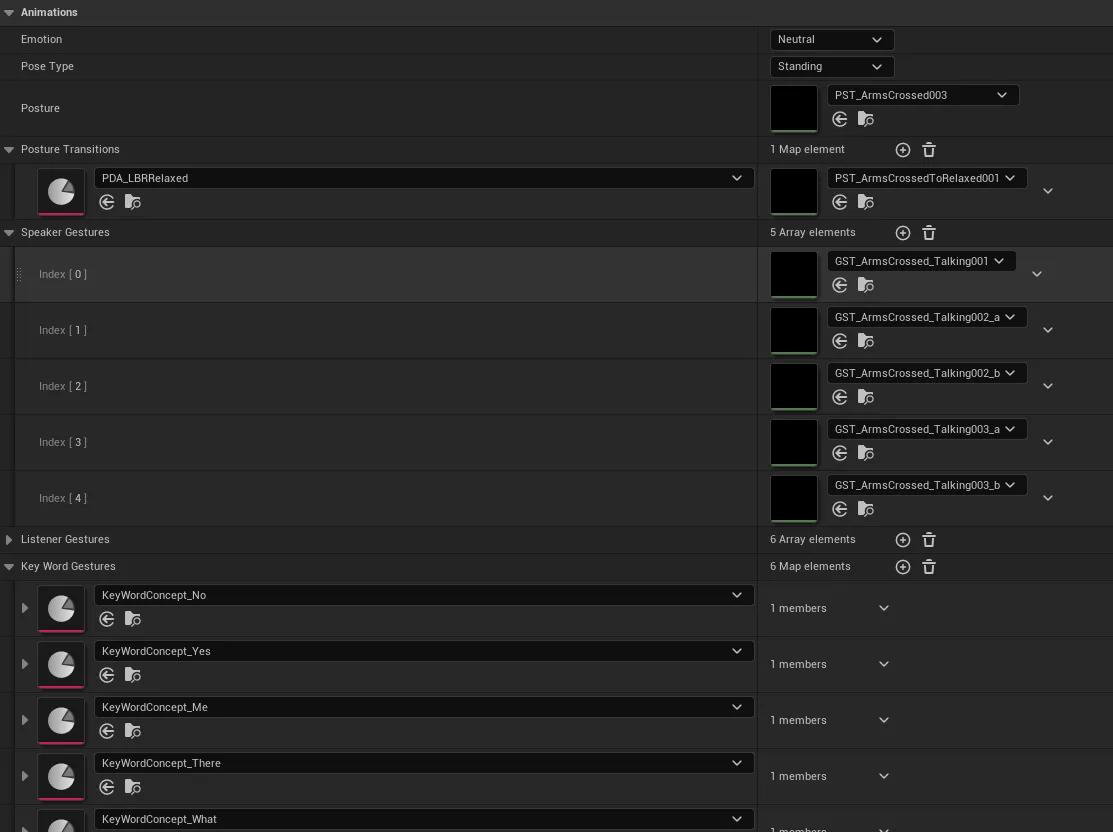
- Edit or create a descriptor. Postures live in
ULBRPostureDescriptorDataAssetassets (right-click Content Browser ▸ Miscellaneous ▸ Data Asset). The plugin ships a few under the Libretto content Postures folder — e.g.PDA_LBRRelaxed, the default. Duplicate one into your project and set its Posture animation (it should match the row's Pose Type and Emotion). - Set the project-wide default at Project Settings ▸ Libretto ▸ Default Posture — this is the descriptor applied to every character unless a line says otherwise.
- Override per line in the Dialogue Editor: a line's Speaker and Listener each carry a Posture (and Emotion). A posture set on a line stays active until a new one is set, so you only change it where the scene shifts. A greyed value shows the posture that will be used at generation, inherited from earlier lines.
Gotcha
Emotion and Pose Type are informational — postures are chosen deterministically and the pipeline doesn't read those two fields (they may even disappear). Drive the actual animation through the Posture you pick, not by hoping the emotion selects one for you.
See also: Generation overview — Animation · Generation overview — Posture descriptors · Settings — Default Posture
I want characters to gesture while they talk — and to play a specific animation on a keyword
Gestures are authored in the same posture descriptor, in two buckets: generic filler gestures and keyword gestures tied to specific words. The generator layers them over the posture automatically — you supply the animations, it decides placement.
- Fill the generic gestures. In the descriptor, set Speaker Gestures and Listener Gestures — the pool of motions used to fill the gaps while a character is speaking vs. listening.
- Tie an animation to a word. Create a
ULBRKeyWordConceptasset (a keyword data asset) grouping the words that mean the same thing — e.g. a "yes"/"agreement" concept. In the descriptor's KeyWord Gestures map, point that concept at a list of animations (e.g. a nod). - Let generation place them. When a word of the concept appears in a line, the generator picks a keyword gesture from that list and places it where the word is spoken (found by analysing the line); standard gestures then fill the gaps left between keyword gestures. Re-generate the dialogue's sequences to see the change.
Gotcha
Keyword gestures fire on the words, not on line metadata — a concept only triggers if one of its words actually appears in the spoken text, so keep the concept's word list broad enough to catch the phrasings you write. Everything else falls back to the generic Speaker/Listener gestures.
See also: Generation overview — Animation · Custom track generators