Living content
I want NPCs to throw out random one-off lines as the player passes by
Turn an ordinary subdialogue into a bark source with one flag — after that it draws a single reply at random each time it starts, and you fire it from gameplay as a throwaway "generic" dialogue. No cameras or baking: it just plays a line where you spawn it.
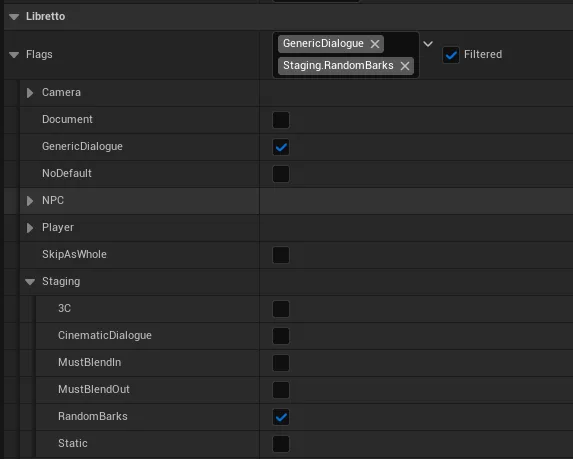
- On the subdialogue, add the flag
Libretto.Flags.Subdialogue.Staging.RandomBarksin Subdialogue Details ▸ Flags. It then stops playing top-to-bottom and instead picks one of itsReplylines at random. - Shape it as a single
Choiceat the top with oneReplyper bark underneath. A bark can be one line or several, and involve more than one character — each reply is a free-form branch, drawn and played in full. -
Fire it with the Blueprint node
Start Generic Dialogue(give it the Dialogue asset and a spawn transform), or the…With Selectorvariants when the asset holds several subdialogues. The ready-madeALBRShowcaseBarkeractor drives this for you from a proximity volume, in timer or interaction mode.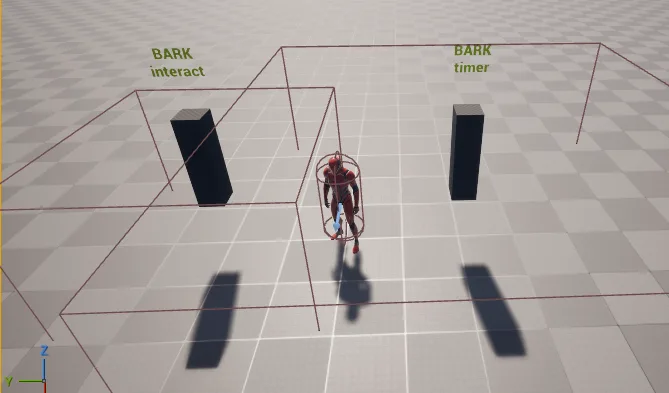
Gotcha
Line IDs are stable identifiers, not a play order — they may look non-sequential (0, 1, 2, 7, 9) and it never matters, because the draw works from line type. You will often want Do Once, Display and Availability on individual replies to gate specific barks behind game state.
See also: Random barks · Barks — the RandomBarks flag
I want my barks to step aside when an important scene starts (and not repeat)
Give barks a low dialogue priority — the priority system simply ignores a bark whenever a higher-priority scene is already running with an overlapping character — and rely on the built-in anti-repetition so the same bark never plays twice in a row. Both are automatic once priorities are set.
- Set a low Dialogue Priority on barks and a higher one on your key scenes. When a bark tries to start while a more important dialogue holds a shared character, it is ignored — the timer keeps firing, but nothing plays until the scene ends.
- Anti-repetition is on by default: after a reply is drawn it is recorded (under
Libretto.RuntimeFlags.BarkHistory) so the next draw skips it. Only the single most recent bark is remembered — enough to avoid an immediate repeat. - For richer history (never repeat until all are exhausted, weighting, several draws back), subclass
the dialogue instance and override the BlueprintNativeEvents
CanPlayRandomBark/MarkBarkPlayed.
Gotcha
A character can only be in one dialogue at a time. A bark and a scripted scene that share a character will fight over that slot — arbitrated by priority, not a hard lock. If crowd NPCs keep colliding with a scripted scene on the same character, split barks and scenes into separate dialogue assets so their character lists never overlap.
See also: Barks and dialogue priorities · Dialogue Priorities
I want a bark's subtitle to float above the speaker, not on the HUD
Add the line flag Libretto.Flags.Lines.Subtitle3D to the bark line — its subtitle then renders in
world space, above the speaker, instead of on the 2D HUD. This is the usual choice for ambient lines
spoken out in the world rather than in a framed conversation.
- On the
Text/Replylines of your barks subdialogue, add the flagLibretto.Flags.Lines.Subtitle3D. - At runtime the dialogue manager gives each line carrying the flag a world-space widget over its speaker, which takes priority over the HUD subtitle for that line.
Gotcha
The flag is per line, not per subdialogue — set it on the individual bark lines you want floating, and leave it off the lines that should stay on the HUD.
See also: Barks — 3D subtitles · Subtitles
I want to author dialogues in a spreadsheet and import them
Write your lines in a spreadsheet, export a |-separated CSV, and use Import Dialogue — Libretto
creates whole dialogues with their text and Speaker lines already filled. It is the fastest way to
bring bulk-written content into the editor.
-
Prepare a CSV with the fixed headers
Title(the Dialogue name),Character(the speaker name),Intention(maps to the line's Stage Direction) andFP(Final Pass — the line text).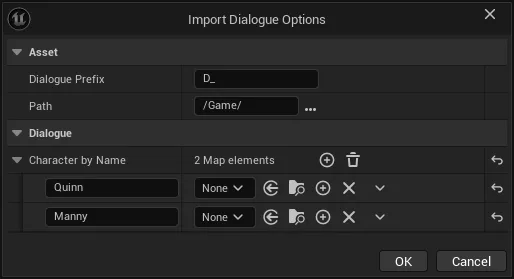
-
Use Import Dialogue in the Libretto toolbar dropdown. In its options window, give a name prefix (e.g.
D_QX_), a path starting with/Game/(e.g./Game/Dialogues/QX), and a mapping from each character name to its Blueprint (create those Blueprints first to avoid mapping by hand). - If a Dialogue with that name already exists, the lines are appended to its first subdialogue rather than creating a new asset.
Gotcha
Save the CSV as UTF-8, with the | separator only and the " string delimiter, and tick
"Edit filter settings" when saving from LibreOffice — then close LibreOffice before
importing. These same settings apply to every CSV Libretto reads.
See also: Import a dialogue from CSV
I want to send my dialogues out for translation and bring them back
Set up a localization target once, move the settled lines to ToLocalize, export a dated batch,
and reimport the returned CSVs — Libretto matches each row back to its line automatically. The
Dialogue assets are the single source of truth; the round is driven by per-line statuses.
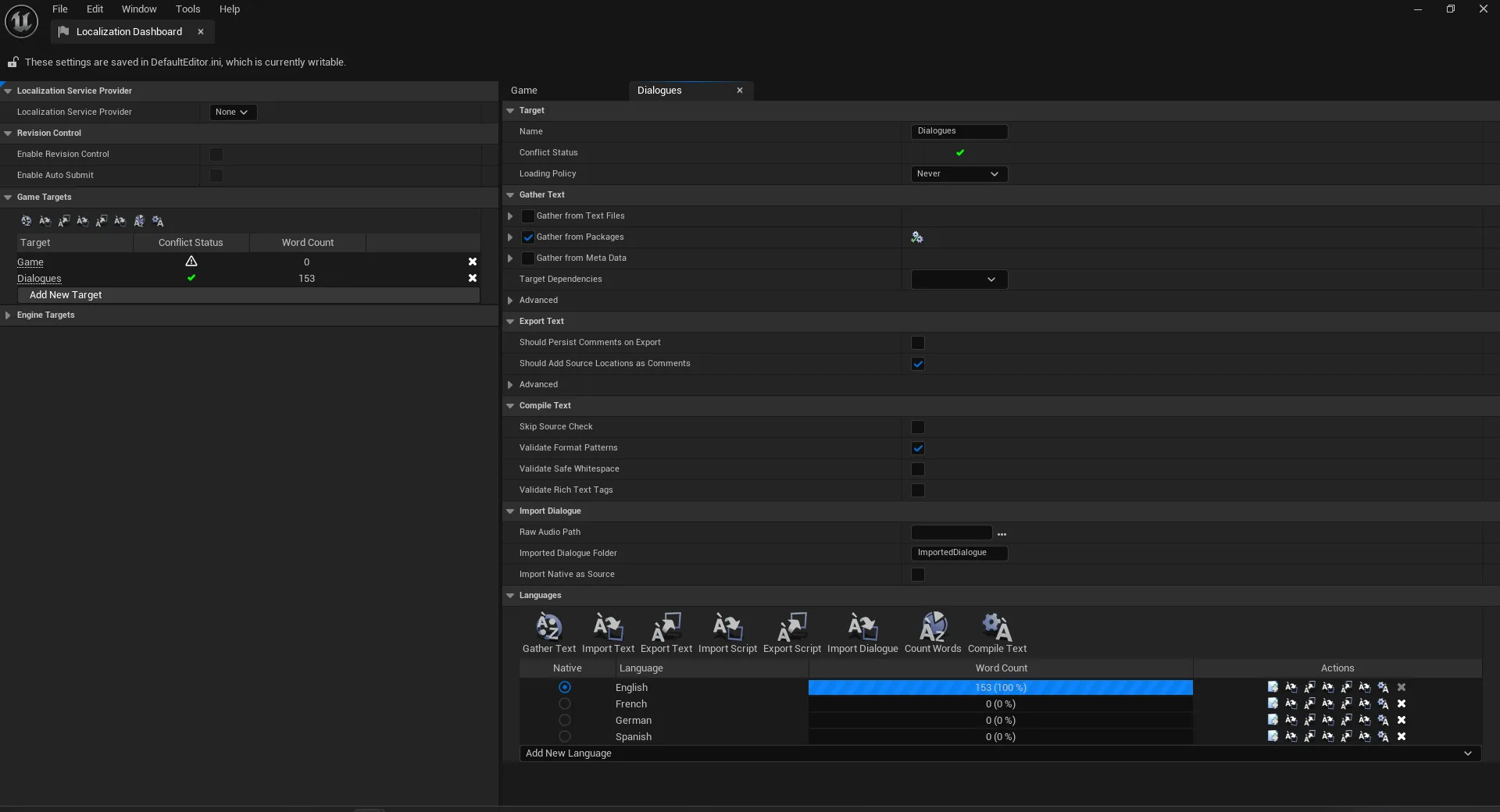
- One-time setup: in Tools ▸ Localization Dashboard, add every dialogue folder to a target
(append
/*, untick the other "Gather from" boxes), set the native language plus at least one localized language, then run an initial Gather Text (save the dialogues first). - Export a batch: move lines to
ToLocalize(the export gate — only those go out), then Content Browser ▸ Export Dialogue To CSV File ▸ Localization. With Change Line(s) Status ticked, exported lines flip toSentand Libretto writes a datedYYYY.MM.DD-HH.MMbatch folder (one CSV per dialogue + aMerged.csvto hand off). - Reimport: Import Localization in the Libretto dropdown, pick the returned CSV(s). Rows are
matched back by dialogue + index; lines become
Localized(orMissingCultureif some languages are still empty).
Gotcha
A returned line's status must still be Sent or the whole import is cancelled rather than
half-applied. Distinguish Base loca (the base language sent out for translation) from Multi
loca (every shipping language) — which one an export touches is inferred from the languages you
pick. And commit the .manifest / .archive files under Content/Localization/ together with the
Dialogue.
See also: Localization & import/export · The status lifecycle · Export a batch
I edited a line that was already translated — what now?
Libretto safeguards translated lines: editing one raises a popup asking whether to invalidate its
translation (Different) or keep it as-is — it never silently drops work that carries cost. The
same guard fires in batch during import when incoming text would overwrite safeguarded lines.
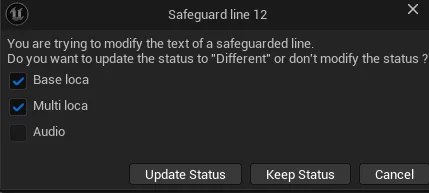
- Editing a safeguarded line's text raises the Safeguard line popup, with a checkbox per affected
kind (Base loca / Multi loca / Audio) and three choices: Update Status (the statuses go to
Different, Audio toToRetake— the line is picked up in a future batch), Keep Status (accept the subtitle is now out of sync), or Cancel the edit. - To review branching without a full translation round, use Export Dialogue To CSV File ▸ Choices And Replies (CSVs of the dialogue's choices and replies), or Export Dialogue To Txt file** (the whole dialogue in reading order).
Gotcha
Editing a line's native text clears its translations, forcing a re-translation of the other languages. And plain copy/paste loses a line's localization — use paste special to carry the localization and associated assets along with the copied lines.
See also: Re-editing a translated line — the Safeguard · Export dialogues to CSV