Generation
I've written my dialogue — how do I turn it into a playable scene?
Run generation on it: Generate Assets, then Generate Sequences. Writing a Dialogue only produces the script; generation turns that script into the assets and the Sequencer timelines that actually play — audio, animation, lip-sync, cameras and subtitles. You can launch it from three equivalent places:
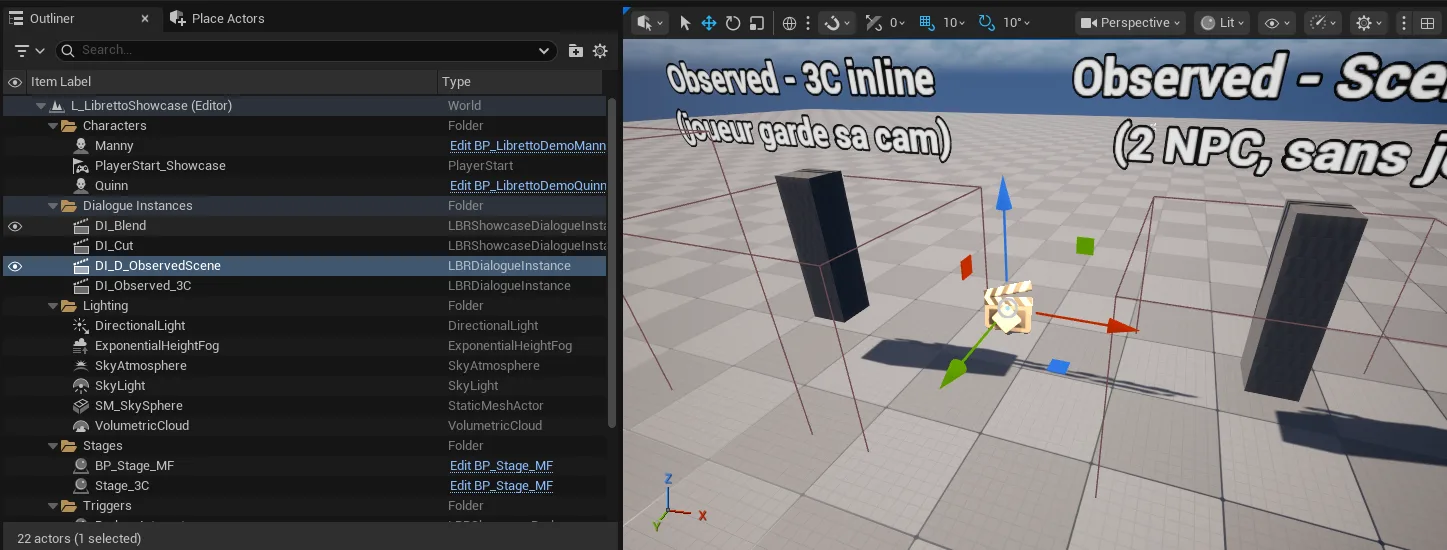
- the Dialogue Instance's Details panel (General category) — acts on that instance's Input Dialogue;
- the toolbar Dialogue Generation section;
- right-click a Dialogue asset ▸ Libretto — generates it as generic (no instance needed, see below).
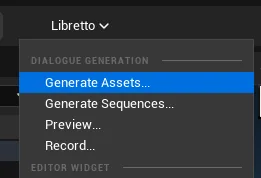
Then, from whichever entry point you chose:
- If your lines are spoken, press Generate Assets first — it produces the per-line audio (TTS) and anything baked from it (see Voices).
- Press Generate Sequences — it assembles the Level Sequences that drive the scene, consuming the assets from step 1.
- Test it with Preview (see
test without gameplay), or
trigger it in-game with
StartDialogueInstance.
Gotcha
Order matters: Assets before Sequences — Sequences consumes what Assets produced, so spoken audio must exist first. And generation is not automatic: nothing you type is reflected in the played scene until you regenerate.
See also: Generation overview · Getting started · Voices
What's the difference between Generate Assets and Generate Sequences?
Assets are the raw, expensive material produced once; Sequences is the timeline that arranges them. Splitting the two lets you rebuild the cheap arrangement without re-paying for the costly audio every time.
- Generate Assets produces the per-line audio (TTS) and derived data such as lip-sync — the slow, source-of-truth material. You only need it when the spoken text changes.
- Generate Sequences builds the Level Sequences: it places the audio, animation, camera and subtitle tracks on the timeline. It is comparatively fast and consumes the existing assets.
Gotcha
Rule of thumb for what to re-run after a change:
- changed spoken text → Generate Assets then Generate Sequences;
- changed only staging, cameras or timing → Generate Sequences alone is enough.
Running Sequences without regenerating Assets keeps your existing audio — it does not re-voice anything.
See also: Generation overview · Voices · Custom track generators
I only want to (re)generate part of a big dialogue
Uncheck the subdialogues you don't want in the generation wizard. Every generation command opens a modal wizard listing the dialogue's subdialogues all checked by default; clearing a box excludes that part, so you can regenerate just the section you changed.
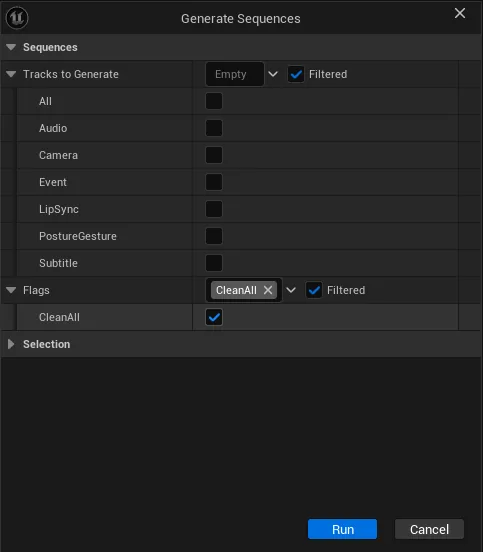
- Launch Generate Assets or Generate Sequences. The wizard opens.
- In the subdialogues list, uncheck anything you don't want to touch (leave checked what you want (re)generated), then press Run.
- To wipe and rebuild from scratch instead of updating in place, tick Clean All in the Sequences ▸ Flags section (see the gotcha).
Gotcha
By default, regeneration is incremental and surgical: each track type clears only its own
tracks, only for the subdialogues you kept checked, and existing character bindings and
hand-placed stages are preserved. Clean All (Libretto.Generation.Flags.User.CleanAll)
instead empties the whole sequence before rebuilding, and also destroys stages that
generation spawned — but never a stage you placed or attributed yourself. Reach for Clean
All when incremental regeneration leaves stale or orphaned tracks behind; leave it off for
normal iteration.
See also: Generation overview · Gameplay tag flags
I hand-tweaked a generated sequence in Sequencer — how do I stop regeneration from wiping my edits?
Lock the sub-sequence in the master. A generated dialogue is an ordinary Level Sequence, so you can open it and fine-tune it by hand in Sequencer; to keep those edits, lock the section so the next generation leaves it alone.
- Open the generated sequence and make your changes in Sequencer as you would on any Level Sequence.
- In the master sequence, find the sub-section for that part and lock it (the padlock on the section — Sequencer's standard section lock).
- Regenerate as usual. Libretto detects the locked sub-sequences, skips them during clean/rebuild, and re-locks them afterwards — your hand edits survive untouched.
Gotcha
Locking is per sub-sequence (i.e. per generated section/subdialogue), not for the whole
dialogue — lock exactly the parts you have hand-authored and leave the rest regenerating normally.
Even Clean All respects locked sub-sequences. This lock is the Sequencer section lock and
has nothing to do with the Staging player locks (bLockPlayerCamera / bLockPlayerMovement).
See also: Generation overview · Runtime
I want to generate without placing an instance in the level
Right-click the Dialogue asset ▸ Libretto and generate it as generic. When a dialogue has no placed Instance — a phone call, a narrator, an ad-hoc conversation — you generate straight from the asset and start it at runtime with the generic helpers, which spawn a transient instance for you.
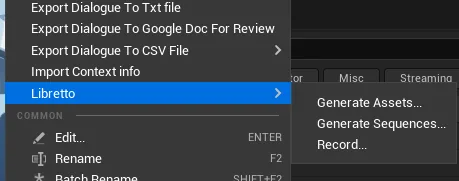
- In the Content Browser, right-click the Dialogue asset ▸ Libretto ▸ Generate Assets… then Generate Sequences… (same wizard, same order).
- At runtime, start it with the static
StartGenericDialogue*helpers instead ofStartDialogueInstance.
Gotcha
Generic generation has no instance-level settings to draw on (no Stage Characters Override, no
Entry/Exit transitions, no per-instance camera rules) — it uses the dialogue's own defaults. If
you need those instance overrides, place an ALBRDialogueInstance and generate from it instead.
See also: Runtime · Getting started — make it play · Blueprint API
I want a video file of the scene, not just play it in-editor
Use Record. Alongside the generation buttons, Record renders the generated dialogue to a video file — useful for trailers, reviews or sharing a scene without opening the editor.
- Generate the dialogue first (Assets + Sequences).
- Press Record (Instance Details, toolbar, or right-click ▸ Libretto ▸ Record…) and Run the wizard. Libretto plays the dialogue with a forced recording game mode and captures it.
Gotcha
Recording is Windows-only and writes the mp4 with the Movie Render Pipeline's built-in H.264 output — nothing to install. The output folder and file name come from your Recording Config preset (its Output setting), not from Libretto.