Barks
Barks are short, one-off lines an NPC throws out on its own — a greeting as you walk past, an ambient comment, a reaction to being nearby. In Libretto a bark is just a small piece of dialogue played through the ordinary runtime, with one twist: instead of playing its lines in order, the subdialogue picks one reply at random each time it starts.
This page covers how to author a random-barks subdialogue, how to fire it from gameplay, and how the built-in anti-repetition and dialogue-priority systems keep barks from stepping on your important scenes.
The RandomBarks flag
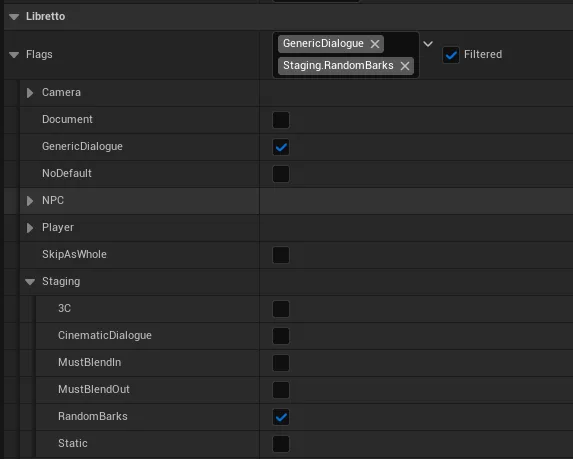
You turn an ordinary subdialogue into a bark source by raising a single flag on it. In the Subdialogue Details ▸ Flags section, add the tag:
Libretto.Flags.Subdialogue.Staging.RandomBarks
Once that flag is set, the subdialogue no longer plays top-to-bottom. When it starts, Libretto
picks one of its Reply lines at random and plays only the content under that reply.
Note
The flag is exposed as the C++ constant TAG_LBRSubDialogueFlag_RandomBarks. The runtime
checks it with Subdialogue->HasFlag(...) before entering the random-draw path — a subdialogue
without the flag always plays normally.
Structure of a barks subdialogue
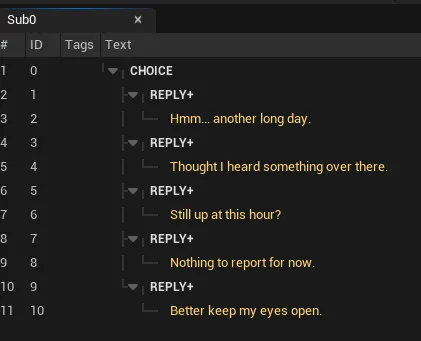
The RandomBarks flag expects a specific shape: a single Choice at the top, with one Reply
per bark underneath it. Each reply holds the actual bark content.
| ID | Type | Text |
|---|---|---|
| — | Choice | (root) |
| — | Reply | |
| — | — | Hello! |
| — | Reply | |
| — | — | How are you? |
| — | Reply | |
| — | — | You can talk to me by walking into the trigger. |
A bark does not have to be a single line. Because each reply is an ordinary dialogue branch, a bark can be one line or several, and can involve more than one character — it is just a free-form chunk of dialogue. At runtime, exactly one reply is drawn and played in full.
Each line still has a Speaker (and emotion/posture) as usual. On the Reply lines you will
often want Do Once, Display Condition and Availability Condition — the same reply
options described in the Dialogue Editor — to gate
individual barks behind game state.
Tip
Line IDs in a subdialogue are stable internal identifiers, not a play order — they may look non-sequential (0, 1, 2, 7, 9, 8, 10). The random draw works from line type, so the IDs never matter here.
Playing barks — StartGenericDialogue
Barks are usually fired as generic dialogues: throwaway instances with no pre-baked cameras or
animations, spawned on demand and discarded when the line finishes. The entry point is the static,
Blueprint-callable node Start Generic Dialogue (ALBRDialogueInstance::StartGenericDialogue).
You give it:
- the Dialogue asset holding your barks subdialogue,
- a spawn transform (where the bark plays from),
- an optional subdialogue selector — the tag that picks the barks subdialogue when the asset holds more than one.
For the selector-driven variants, use Start Generic Dialogue With Selector / …With
Selectors / …With Selector Query (StartGenericDialogueWithSelector,
StartGenericDialogueWithSelectors, StartGenericDialogueWithSelectorQuery). These match the
subdialogue by its Selectors tags (set in Subdialogue Details), rather than by the first
playable subdialogue.
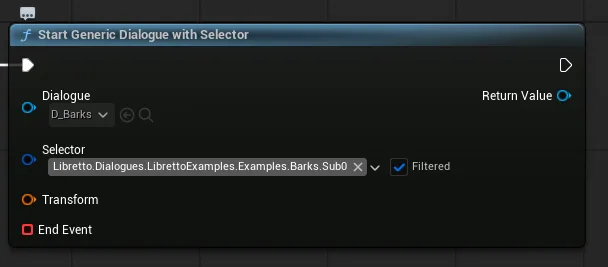
A common demo pattern is a timer that re-fires the bark every few seconds: each call draws a fresh random reply, and the priority system (below) quietly drops the call whenever a more important dialogue is already running.
Showcase barker actor
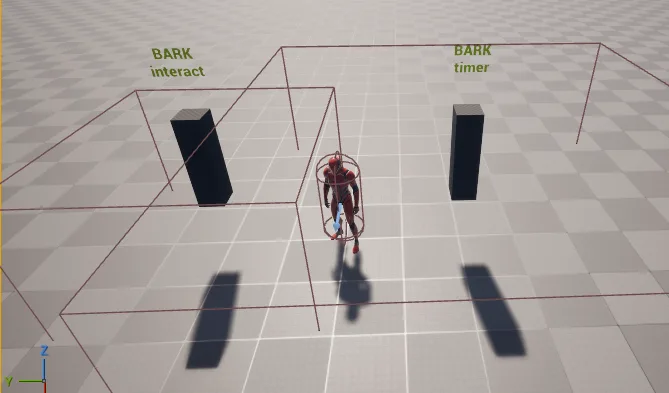
The Libretto showcase ships a ready-made demonstration actor, ALBRShowcaseBarker
(in the Libretto plugin), that drives barks two ways from a proximity volume:
- Timer mode (
bBarkOnTimerWhileNear) — while the player pawn is inside the volume, a bark fires everyBarkIntervalseconds. - Interaction mode (
bBarkOnPlayerOverlap) — a single bark fires when the player enters the volume, throttled byInteractionCooldown. You can also fire one manually from Blueprint viaTriggerBark().
Point its BarkDialogue at a dialogue whose subdialogue carries the RandomBarks flag, optionally
set a SubdialogueSelector, and it routes every bark through StartGenericDialogueWithSelector.
Anti-repetition
By default, Libretto will not play the same bark twice in a row. After a reply is drawn, it is recorded so the next draw skips it.
The history is stored in the GPVar subsystem under the runtime tag
Libretto.RuntimeFlags.BarkHistory, keyed by the subdialogue's tag plus the reply's tag. When a
subdialogue is about to draw, each candidate reply is passed through CanPlayRandomBark, which
returns false for the reply recorded as last played; after a bark plays, MarkBarkPlayed
writes the new reply into the history.
By design only the single most recent bark is remembered — enough to avoid an immediate repeat, but not a longer no-repeat streak.
Custom history
Both CanPlayRandomBark and MarkBarkPlayed are BlueprintNativeEvents on
ALBRDialogueInstance. Subclass your dialogue instance (in Blueprint or C++) and override them
to implement richer history — never repeating a bark until all are exhausted, weighting choices,
remembering several draws back, and so on. See GPVars
for the underlying storage.
Barks and dialogue priorities
You can keep a barks subdialogue in a dialogue asset that also holds "real" conversations, but mind two constraints:
- A character can only be in one dialogue at a time. A bark and an important scene that share a character will fight over that character's dialogue slot.
- That fight is arbitrated by dialogue priorities, not a hard lock. When a bark tries to start while a higher-priority dialogue is already running with an overlapping character, the priority system simply ignores the bark — the timer keeps firing, but nothing plays until the scene ends.
This is exactly what you want: ambient barks fill the space, then step aside the moment something important begins. Give barks a low Dialogue Priority and your key scenes a higher one. See Dialogue Priorities for the full arbitration model (Play / Interrupt / Ignore / Muffle / Mute).
Tip
If barks and an important dialogue keep colliding on the same NPC — for example crowd NPCs murmuring behind a scripted scene — split them into separate dialogue assets so their character lists never overlap.
3D subtitles for barks
Because a bark is spoken out in the world rather than in a framed conversation, you often want its subtitle to float above the speaker instead of on the 2D HUD.
Subtitle3D flag
Add the line flag Libretto.Flags.Lines.Subtitle3D to a bark line to render its subtitle in
world space, above the speaker, bark-style, instead of on the 2D HUD. At runtime
ULBRDialogueManager gives each line carrying this flag a world-space widget over its speaker,
which takes priority over the HUD subtitle for that line. Set it on the Text/Reply lines of
your barks subdialogue.