Voices
I want to hear my dialogue spoken without recording any actors
Generate the TTS (text-to-speech) placeholder audio — it ships wired to the free local provider. Libretto's default TTS provider is MSVoice (Windows SAPI): local, free, no network, already configured in the plugin. You get spoken audio for review without touching a single setting.
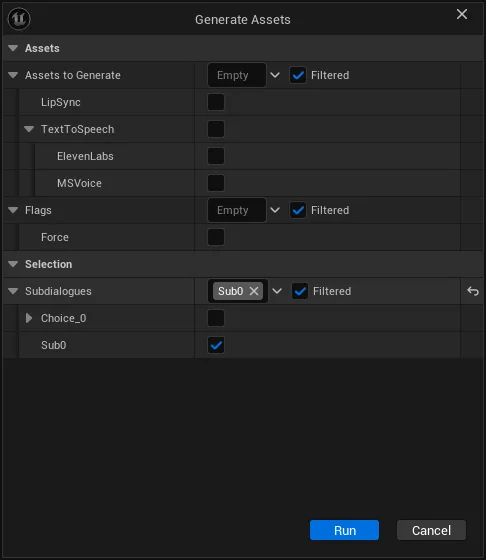
- Press Generate Assets — the TTS generator produces one audio take per spoken line.
- Press Generate Sequences — the audio is placed on the timeline.
- Preview the scene: your lines are now spoken.
Gotcha
Only Text lines with a Speaker get a voice. Player Reply lines are never voiced — to
voice the player, write real Text lines spoken by the player character (e.g. inside a Choice).
TTS is a placeholder: it exists to review timing, staging and cameras with real audio, not to
ship as final voice.
See also: Text to speech · Generation
My characters all sound the same, or speak the wrong language
Give each character a row in the MSVoice character table, and differentiate same-gender voices with pitch and rate. A typical machine has only two English SAPI voices (David and Zira), so two male characters both auto-pick David and sound identical — the table is how you tell them apart and control language.
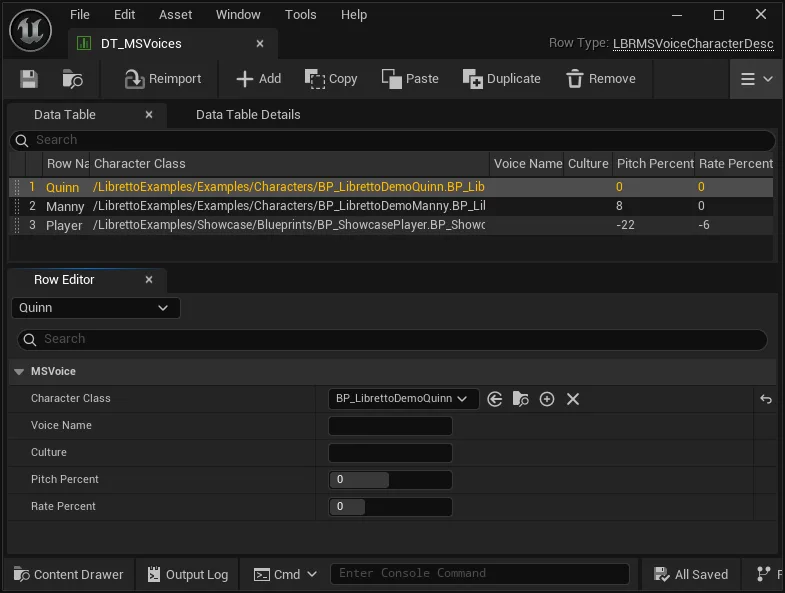
- Open
DT_MSVoices(the MSVoice Character Table in Project Settings ▸ Libretto – Text To Speech). - Add a row per character (
FLBRMSVoiceCharacterDesc): set Character Class, and adjust Pitch Percent / Rate Percent so two characters sharing the same underlying voice are audibly distinct. - Leave Culture empty so the voice follows the generation culture; fill it only to pin a character to a specific language.
- Re-run Generate Assets (see the re-voicing entry below).
Gotcha
Leave Voice Name empty to auto-pick by gender + culture — portable across machines; a named Windows voice may not exist on a teammate's PC. And Culture is a trap: filling it pins the language regardless of the culture you generate. Widen the pool by installing more SAPI voices via Windows Settings ▸ Time & Language ▸ Speech.
See also: MSVoice — how a voice is picked ·
The character table (DT_MSVoices)
I edited a line — how do I re-voice just it, without regenerating everything?
Delete that one line's audio asset — a normal run only regenerates the missing audio, so it re-voices just that line. Because a normal Generate Assets run skips anything that already exists and produces only what's missing, deleting a single line's asset is the surgical lever: the next run recreates exactly that one, and nothing else.
- In the Content Browser, find the edited line's audio asset in the dialogue's audio folder and
delete it — the TTS placeholder is named
VX_<DialoguePrefix>_<LineID>_TTS(delete the Voice assetVX_<DialoguePrefix>_<LineID>too if you want to re-voice a recorded line). - Run Generate Assets normally — no Force — then Generate Sequences. Only the deleted asset is regenerated, so only that line changes.
To refresh a whole section instead, use Force scoped in the wizard:
- Launch Generate Assets, uncheck every subdialogue except the one you want, tick Force (generate all data rather than just the missing assets), Run. Force with all subdialogues checked re-voices the entire dialogue.
Gotcha
Force is not text-diff aware — it re-voices the whole checked scope, not "only the lines whose text changed". That's why deleting a single asset (step 1) is the finest grain: it needs no Force at all. Force is an Assets-side flag (re-voicing); it is a different thing from Clean All, a Sequences-side flag that wipes and rebuilds timelines (see regenerate part of a dialogue).
See also: What gets a voice · Generate Assets vs Sequences
I have a more advanced TTS provider — how do I interface it with Libretto?
TTS is pluggable: a provider is a subsystem + an asset generator you tick in Generate Assets. Libretto ships MSVoice (free, local) and ElevenLabs (cloud, high quality). ElevenLabs is the ready-made "better voices" path; a fully custom provider is a code extension point.
- Use ElevenLabs (the shipped high-quality provider): set the ElevenLabs API Token and a
Character Voices Table (
FLBRElevenLabsCharacterDesc) in TTS settings, then tick its generator in the Generate Assets wizard. - Integrate your own: implement a
ULBRTextToSpeechSubsystemand aULBRTTSGeneratorthat writes one WAV per spoken line at the path/name Libretto expects, register it in the Asset Generators list, and select it via the Text To Speech Subsystem setting.
Gotcha
Cloud providers spend quota and make generation noticeably slower — generate only what you need (per-subdialogue selection, and rely on skip already-generated rather than Force). A custom provider must honour Libretto's per-line WAV naming and mount-aware output, or the audio track won't find its takes.
See also: ElevenLabs · Providers at a glance · Custom track generators
I want a script to hand to voice actors before a recording session
Right-click the Dialogue asset ▸ Import/Export and pick a script export — these are separate from localization. The CSV round-trip is for translators; a script export is the readable document you give a voice cast. Three options cover the usual needs, from a per-actor recording sheet to a Final Draft screenplay.
- Export Recording Script (per character) — the session-ready option: one
.txtsheet per speaking character, so each actor gets only their lines. Every line shows its subdialogue, the target Voice filenameVX_<DialoguePrefix>_<LineID>(so returned takes map straight onto the right asset), an(Off)marker for voice-over, the stage direction as(| … |), and the text. - Export To Final Draft (.fdx) — the dialogue as a proper screenplay for Final Draft (or any
.fdx-aware tool): a Scene Heading per subdialogue, Character / Parenthetical (stage direction) / Dialogue, and Action lines for the branching (Choice / Reply / Comment / Silence / GoTo). - Export Dialogue To Txt file — the whole dialogue as one readable text per subdialogue in
reading order:
#Speaker <Character>headers (with(Off)), stage directions as(|…|), the text, and#Comment / #Silence / #GoTo / #Choicestructure markers. A culture picker appears if the dialogue is translated.
Which one?
Hand actors the per-character sheets — they map cleanly onto the Voice assets. Use Final Draft when a writer or studio wants a screenplay. Use Txt to read or review the branching in one place.
Gotcha
The direction actors read comes from each line's Stage Direction field — fill it (in English,
as the field intends) or the script ships without it. All script exports read the native
culture by default (the Txt export lets you pick another). To script these headlessly, the per-character and Final Draft exports are also on
ULBRDialogueExportLibrary (ExportRecordingScript / ExportFinalDraft), callable from
Blueprint or Python.
See also: Using recorded takes · Dialogue Editor · Localization (the other export)
We recorded real voice actors — how do I use those takes over the TTS?
Import each recorded take as the line's Voice asset, named to match — it automatically overrides the TTS. Every spoken line has two audio slots: a Voice asset (real recording) and a TTS asset (placeholder). At runtime Libretto looks up the Voice first and only falls back to TTS, so a recorded take wins for that line with no extra wiring.
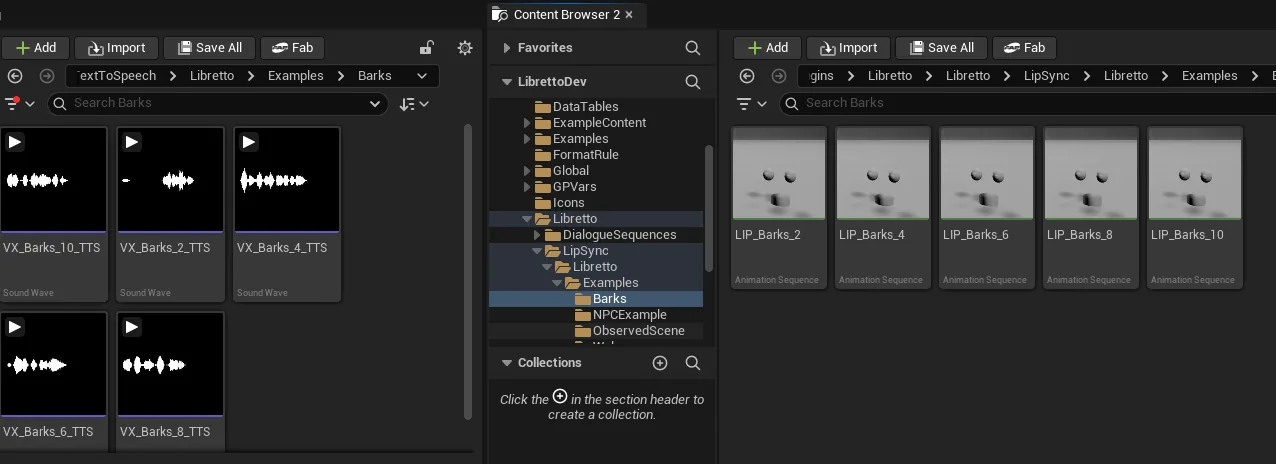
- For each recorded line, import the WAV as a SoundWave named
VX_<DialoguePrefix>_<LineID>(the TTS placeholder for the same line isVX_<DialoguePrefix>_<LineID>_TTS). - Place it in the line's voice directory — the mount-aware audio folder next to the dialogue's
sequences (inside the plugin, not
/Game, if the dialogue lives in a plugin). - That's it — the recorded Voice now plays instead of the TTS for that line.
Gotcha
Precedence is per line: a line with no recorded Voice still plays its TTS, so you can mix real
takes and placeholders freely. Get the name and ID right — the lookup is by name, and a
mismatch silently falls back to TTS. Re-running TTS generation only rebuilds the …_TTS assets, so
your recorded Voice takes are never overwritten by a regeneration.
See also: Text to speech · Re-voicing an edited line