Gameplay Tag Flags
LBRGameplayTagFlags turn a gameplay tag container into a single property that reads like a
set of checkboxes — an extensible, per-project list of options. Instead of hard-coding a bunch
of bool fields, you expose one property whose available options are simply all the gameplay tags
found under a given branch of the tag tree. Add a new tag in the right place and a new checkbox
appears automatically, with no code change.
This is how Libretto exposes things like per-line and per-subdialogue Flags, and the generation options (which tracks to generate, which asset types, and so on).
Overview
An LBRGameplayTagFlags value is really a FGameplayTagContainer under the hood — the tags that
are present in the container are the boxes that are ticked. Because the field is filtered to a
category (a parent tag), the property grid lists every child tag of that category as an independent
checkbox.
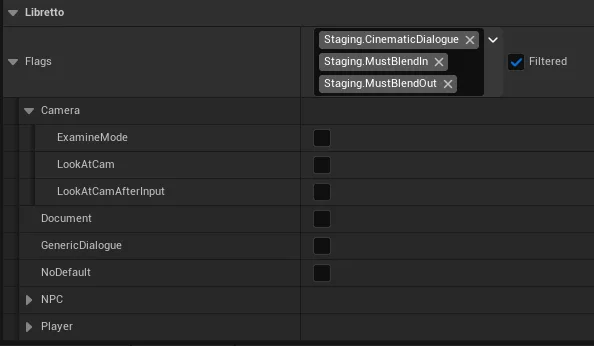
For example, a LineFlags property filtered to Libretto.Flags.Lines offers each child of
Libretto.Flags.Lines (NoSubtitle, Pause, …) as its own toggle.
Tip
Because the underlying type is a gameplay tag container, the value is inherently extensible and data-driven. Two teams (or two plugins) can contribute options to the same property just by declaring tags under the same parent — nothing needs to know about the others.
Adding new flags
To add an option, you don't touch the property at all — you just create the matching gameplay tag in the correct place in the hierarchy. A flags property filtered on a category tag automatically offers every child of that category as a checkbox, regardless of who declared it or where it came from.
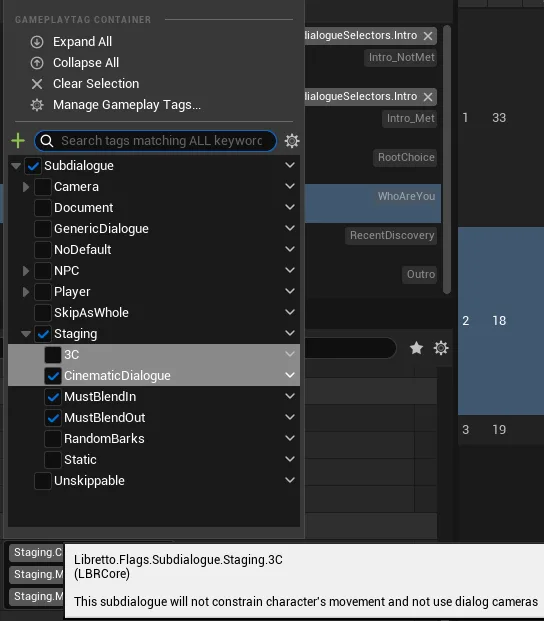
Tags can be declared the usual ways — the Project Settings ▸ GameplayTags editor, an .ini
tag table, or natively in C++. Libretto declares its own flag tags natively; you can follow the
same pattern for project-specific options:
// In a .cpp, using Libretto's helper macros (see LBRGameplayTagFlags.h)
LBR_DEFINE_GAMEPLAY_TAG(TAG_MyProject_Lines_Whisper, "Libretto.Flags.Lines.Whisper",
    "Render this line's subtitle in the whisper style");
Info
The exact tag-declaration macros (LBR_DECLARE_GAMEPLAY_TAG_EXTERN, LBR_DEFINE_GAMEPLAY_TAG,
LBR_DEFINE_EDITOR_GAMEPLAY_TAG) live in LBRGameplayTagFlags.h. They are thin wrappers over
Unreal's UE_DEFINE_GAMEPLAY_TAG_* macros; if you already have a tag-declaration convention in
your project, use whatever you like — the flags UI only cares that the tags exist under the
right parent.
Filtering the options
A flags property is only useful once it is filtered to a category, so it shows the right subset
of tags rather than the whole tag tree. There are two meta specifiers for this, both standard
Unreal gameplay-tag mechanics that LBRGameplayTagFlags honours.
Categories — a fixed filter
Use the Categories meta specifier to pin a property (or a Blueprint parameter) to a branch of the
tag tree. Everything under that parent becomes a checkbox:
// A per-line flags property, filtered to the "Lines" category.
UPROPERTY(EditAnywhere, BlueprintReadWrite,
    meta = (Categories = "Libretto.Flags.Lines", AutoExpandFlags), Category = "Dialogue")
FLBRGameplayTagFlags LineFlags;
It works the same on a UPARAM for a Blueprint-exposed function parameter:
UFUNCTION(BlueprintCallable)
void SetFlags(UPARAM(meta = (AutoExpandFlags, Categories = "Libretto.Flags.Subdialogue"))
    const FLBRGameplayTagFlags& Flags);
AutoExpandFlags
Add AutoExpandFlags (it defaults to on) to draw the options inline as a checkbox grid
in the details panel, instead of a collapsed combo you have to open. On a single FGameplayTag
(rather than a container), you also need the AsFlag meta for it to render as a flag toggle.

GetCategories — a dynamic filter
When the valid options aren't a fixed branch but depend on context, point at a function that
returns the filter string, using GetCategories instead of Categories:
UPROPERTY(EditAnywhere, meta = (GetCategories = "GetSelectorsCategories", AutoExpandFlags))
FGameplayTagContainer Selectors;
The named function is resolved to produce the category list at edit time. Libretto uses this, for example, to filter a "dialogue done" flags parameter to the set of dialogue tags that actually exist:
static bool AreDialoguesDone(
    UPARAM(meta = (GetCategories = "LBRDialogueTagsSubsystem.GetAllDialogueRootTagsStringStatic"))
    const FLBRGameplayTagFlags& DialogueTags);
GameplayTagFilter on functions
For a UFUNCTION whose gameplay-tag parameters need filtering as Blueprint pins, the standard
GameplayTagFilter meta specifier applies, with GetGameplayTagFilter as its function-driven
counterpart (the same fixed vs. dynamic pairing as Categories / GetCategories).
Info
In this codebase the filter is most often expressed through Categories / GetCategories.
GameplayTagFilter / GetGameplayTagFilter are recognised by the same editor machinery
(LBRTagsEditorFunctionLibrary); reach for them when you specifically need to filter a
function's tag pins rather than a struct/property.
Working with the value in code
FLBRGameplayTagFlags derives from FGameplayTagContainer, so the whole container API is available
directly:
| Operation | How |
|---|---|
| Is a flag set? | Flags.HasTag(SomeTag) (inherited from the container) |
| Any of a set? | Flags.HasAny(OtherContainer) |
| Set a flag | Flags.AddTag(SomeTag) / Flags.AppendTags(Other) |
| Combine | A \| B (or A \|= B) — adds/appends, returns LBRGameplayTagFlags |
| Test membership | A & SomeTag — sugar for HasTag; A & Container maps to HasAny |
| Empty default | FLBRGameplayTagFlags::EmptyFlags (handy as a default parameter) |
In Blueprint, the LBRTags function library exposes matching nodes — a Make Literal node, an
autocast from a plain gameplay tag container, + (add / append) operators, and == / !=
comparisons — so flags are as easy to build up in graphs as in C++.
Tip
Since a flags value is a tag container, you can feed it to any engine node that takes an
FGameplayTagContainer, and cast a plain container into flags with the provided autocast node.